
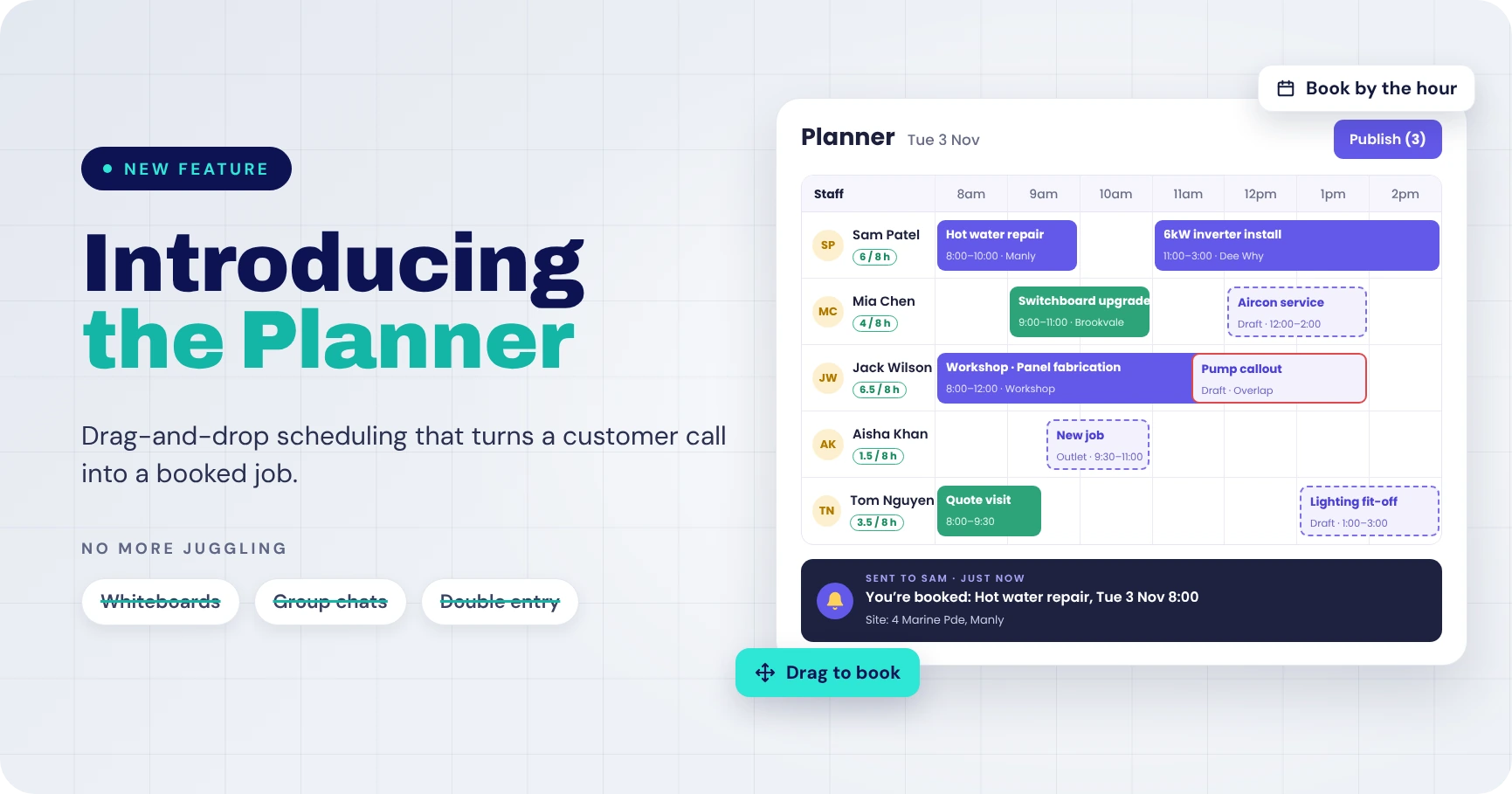
Meet the Planner: field service scheduling, built into WorkGuru
A drag-and-drop booking board that turns a customer call into a priced, scheduled job, and tells your field team exactly where they need to be.
The short version: the Planner is a new hourly scheduling board in WorkGuru. Drag across a technician’s row to create a priced service job, drag each of its tasks onto the right person, then publish the schedule so your team gets the job, time and site address on their phone. Every job is a full WorkGuru project, and the Planner is available now in beta.
The phone rings. A customer’s hot water system has failed, and they need someone today. Who’s free this afternoon? Is anyone already near Manly? Has the job even been set up yet?
For most service businesses, answering those questions means a whiteboard, a spreadsheet, a group chat and a lot of calls back and forth. By the time the job is booked, it’s been entered three times, and the technician finds out where they’re going from a text message.
Today we’re introducing the Planner: a new scheduling board in WorkGuru built for field service and workshop teams. It’s available now in beta.
Why we built it
WorkGuru has always been strong at the job itself: quoting, materials, timesheets, invoicing. What our field service customers kept telling us was that the hardest part of their day happens before the job starts.
Scheduling a service call means juggling three questions at once:
- Who is available, and how full is their day already?
- When can the work actually happen, and does it fit the job’s dates?
- What exactly are they doing: which task, at which site, for which customer?
Until now, WorkGuru answered those in different places. Staff Schedule showed who was booked, projects held the work, and creating a new job meant leaving the schedule to set one up. Schedulers told us they wanted it all on one screen, in the time it takes to answer the phone.
So we built the Planner around how a dispatcher actually works: look at the board, find a gap, drag the job into it.
How it works: from call to booked job
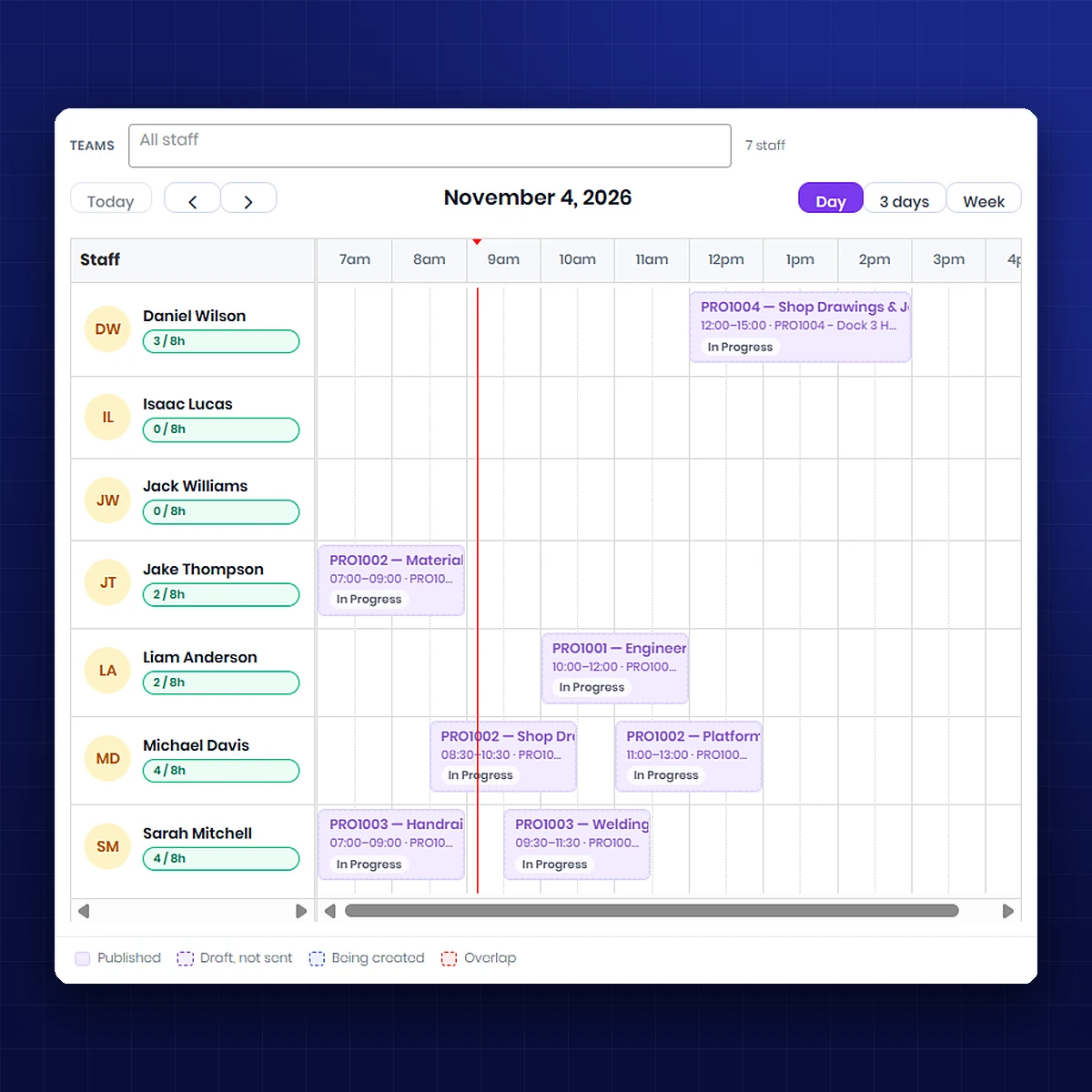
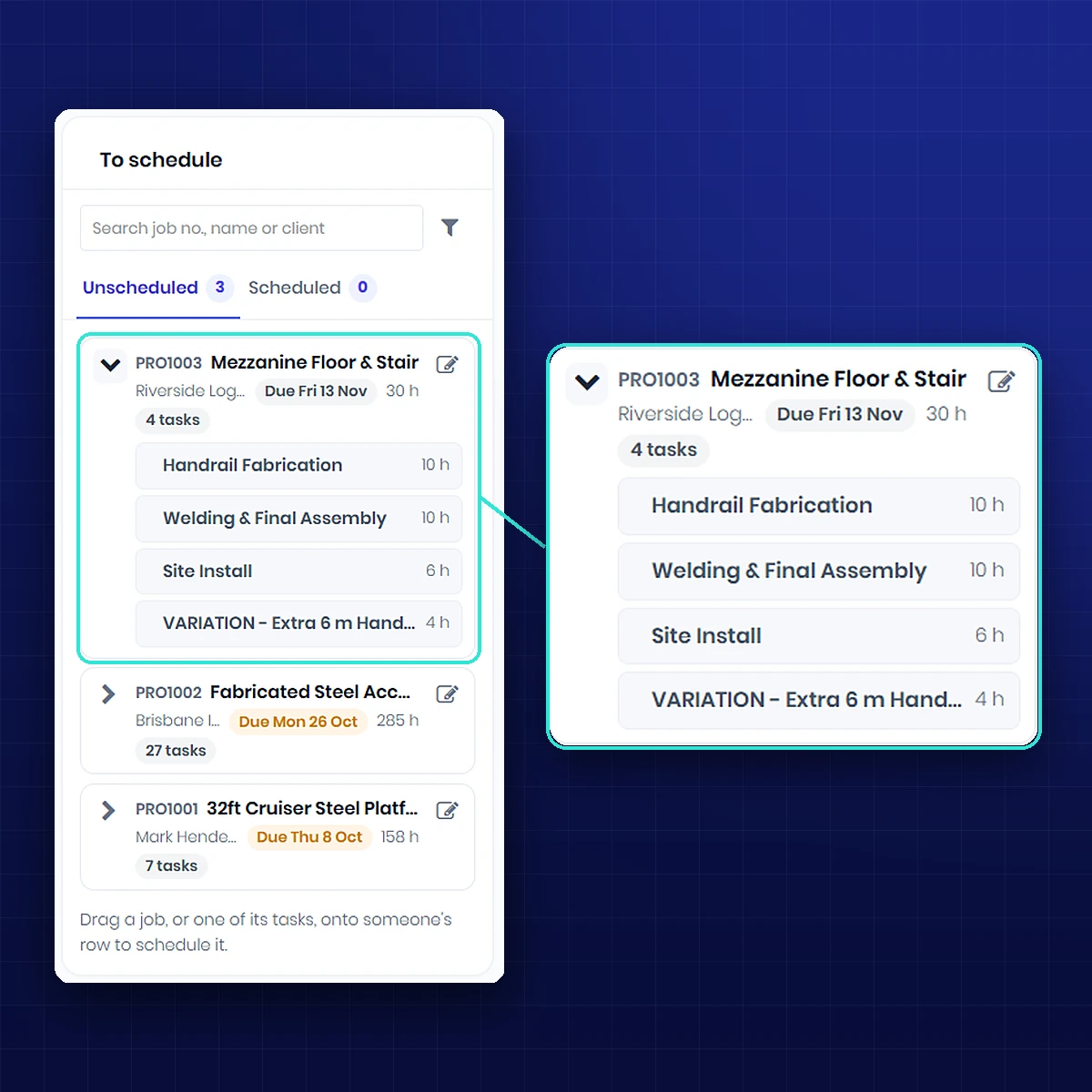
The Planner is an hourly board with a row for each person on your team. Beside it sits a “To schedule” list of open jobs still waiting to be booked.
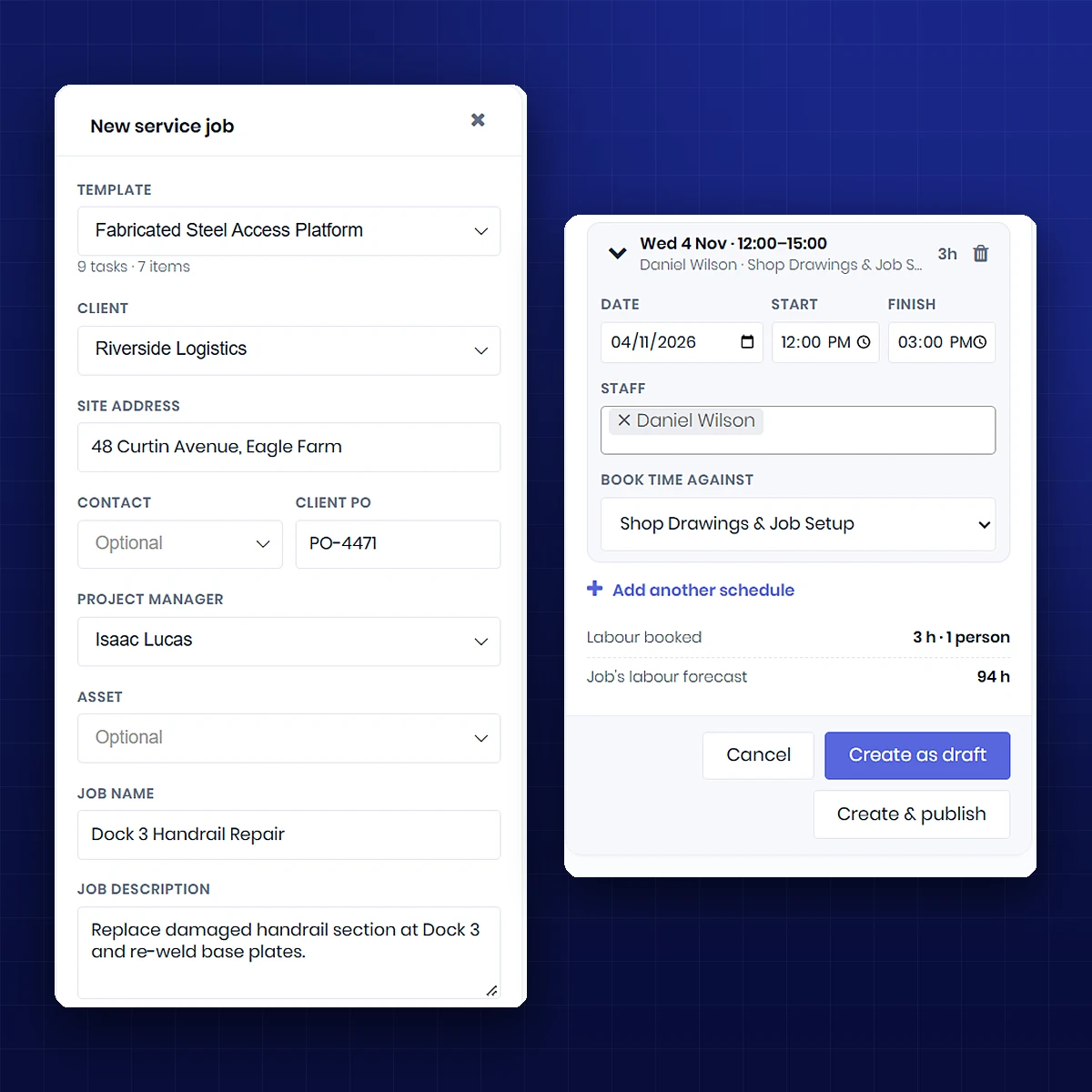
Create a job right on the board. Drag across a technician’s row at the time you want, and a new service job opens beside the board. Pick a template (your standard service call, an install, a callout), choose the customer and site, and you’re done. The job is priced from the template for that customer, exactly as if you’d set it up on the project page.
Book the work, not just the job. A job is often more than one person’s work: a technician on site, an apprentice for the install, someone in the workshop to prep parts. The Planner lists each job’s tasks so you can drag each one onto the right person.
Book exactly the time it needs. Drag a two-hour slot or a whole afternoon; the booking is the length you drag. When the job is created, its labour forecast comes from what you booked, so your job costing reflects the real plan, not a template guess.
Catch problems before they happen. Double-booked someone? The board flags the overlap. Booked past a job’s due date? You’re asked whether to move the job’s dates or keep them. Everyone’s hours for the day show on their row, so you can see who has room at a glance.
Draft first, send when ready. Bookings start as drafts, so you can build tomorrow’s schedule without pinging anyone. When it’s right, hit Publish and your team is told in one go.
The Planner · Beta
Want the Planner on Your Own Schedule?
Join the WorkGuru Beta program and start booking jobs straight from the board. Tell us how it fits your day.
Visibility for your field team
A schedule only works if the people on it know about it. The Planner keeps your field team in the loop without anyone sending a single text:
-
Instant notices. When a booking is published, the technician gets a notification and an email with the job, task, time and site address. Move it, change the site or cancel it, and they’re told again.
-
Their own calendar. A private calendar link drops each person’s bookings straight into Google Calendar, Outlook or Apple Calendar on their phone.
-
A printed run sheet for each person, with the customer contact, phone number and job description, for crews who like paper in the van.
-
One shared picture. Office and field see the same bookings on the Planner or Staff Schedule. Filter the board by team to see just the field crew or the workshop.
The result: fewer “where am I going today?” calls, fewer missed changes, and a team that turns up at the right place with the right information.
More than a scheduling board
The Planner isn’t a separate app bolted on. Every job it creates is a full WorkGuru project, with the same materials, timesheets, purchasing, job costing and invoicing you already use.
That matters because it broadens what one system can run:
- Field service businesses can now take a call, create the job, book the tech and invoice the work without leaving WorkGuru.
- Workshops and manufacturers can schedule bench and fabrication work by the hour, alongside project work on the Gantt.
- Mixed businesses (install crews plus a workshop, or projects plus maintenance contracts) can see all of it on one board.
No double entry, no syncing between a scheduling tool and your job system, and one set of numbers from first call to final invoice.
Getting started with the Planner
The Planner is available now to customers in the WorkGuru Beta program. Once it’s switched on, you’ll find it under Scheduling › Planner. Setup takes about 15 minutes.
How to set up the Planner
-
Choose your default service template
Go to Settings › Service jobs and pick the template new jobs on the board start from.
-
Check your team’s permissions
Make sure your schedulers have permission to create and book jobs.
-
Turn on task assignment notifications
Ask your field team to switch on task assignment notifications, so every published booking reaches their phone.
That’s it. Open Scheduling › Planner, find a gap on the board and drag your first job into it. Our support guide walks through each step.
Want early access? Contact our team to join the Beta program, and tell us what you think. The Planner is shaped by feedback from businesses like yours, and we’d love to hear how it fits your day.
FAQS
Frequently Asked Questions
What is the WorkGuru Planner?
The Planner is a drag-and-drop scheduling board in WorkGuru, built for field service and workshop teams. It shows an hourly row for each person on your team, with a “To schedule” list of open jobs waiting to be booked beside it.
Can I create a new job from the Planner?
Yes. Drag across a technician’s row at the time you want, pick a template, then choose the customer and site. The job is priced from the template for that customer, exactly as if you’d set it up on the project page.
How does my field team find out about their bookings?
When you publish a booking, the technician gets a notification and an email with the job, task, time and site address. If the booking is moved, the site changes or it’s cancelled, they’re told again. Bookings start as drafts, so nobody is notified until you publish.
Does the Planner work with Google Calendar or Outlook?
Yes. Each person has a private calendar link that adds their bookings to Google Calendar, Outlook or Apple Calendar on their phone.
Are jobs created in the Planner full WorkGuru projects?
Yes. Every job the Planner creates is a full WorkGuru project, with the same materials, timesheets, purchasing, job costing and invoicing you already use. Its labour forecast comes from the time you booked.
How do I get the Planner?
The Planner is available now to customers in the WorkGuru Beta program. Once it’s switched on, you’ll find it under Scheduling › Planner. Contact our team to join the Beta.