
Home / Features / Project Management / Project Chat
Projects & Jobs
Keep the conversation with the job.
Talk about the work where the rest of the job already lives.
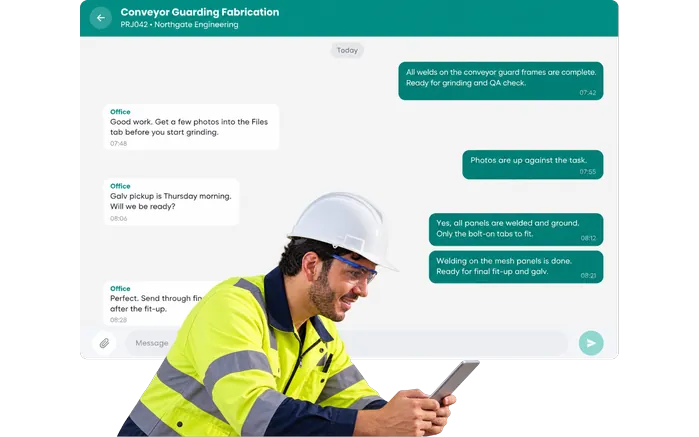
Overview
Because “who said that?” isn’t much help three weeks later.
A photo gets texted to someone.
The project manager gets a phone call.
Someone asks a question in a group chat.
A decision gets made.
Then three weeks later, nobody can remember exactly what happened.
Project Chat keeps the conversation with the project.
Open the job and the conversation is there with it.
Project Chat is available across desktop and mobile, and the conversation remains attached to the project after it has been completed.
What’s inside
What you get
01
Project-based conversations
Each conversation belongs to the project it’s about.
02
Desktop and mobile
Keep the conversation going whether you’re in the office, workshop or field.
03
Photos in context
Show the team what you’re looking at.
04
Project notifications
Keep the right people across what’s happening.
05
Permissions
Control who can participate in project conversations.
06
Conversation history
Keep the discussion as part of the project’s history after the work is finished.
The reality
Job conversations end up everywhere.
Someone sends a photo by text.
Useful today. A nightmare to find in six months.
A decision gets made on the phone.
The two people on the call know about it. Nobody else does.
You’ve got another group chat.
And another one. And nobody remembers which one the job was discussed in.
Someone new joins the job.
Now somebody has to explain everything that’s already happened.
The customer asks why something changed.
You remember discussing it. Finding the discussion is another matter.
How it works
How it works
01
Open the job
02
Create the project chat
03
Bring in the people working on it
04
Talk about what’s happening
05
Add context
06
Keep the history
Capabilities
What it does
Capability
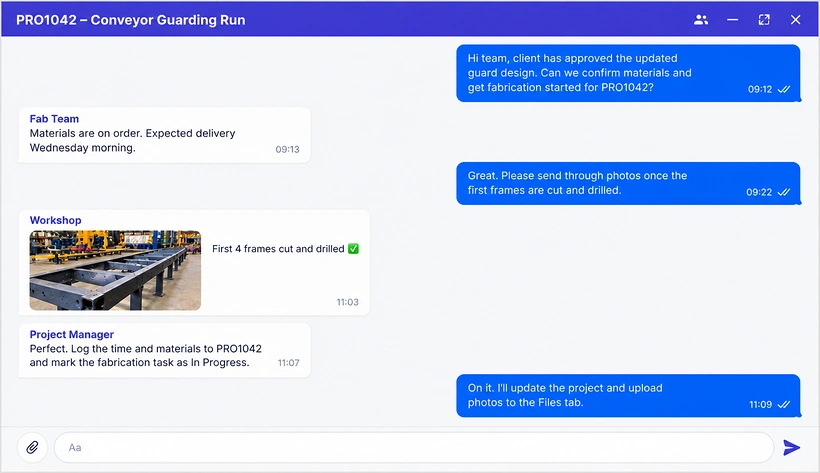
Project-based conversations
Each conversation belongs to the project it’s about.
Capability
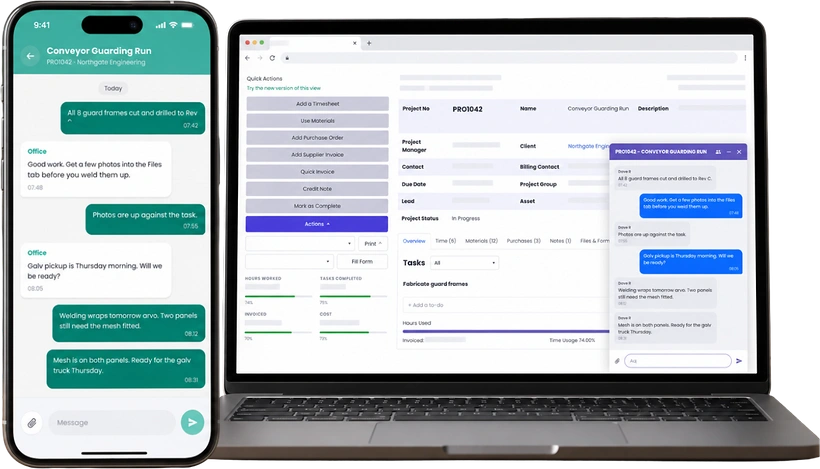
Desktop and mobile
Keep the conversation going whether you’re in the office, workshop or field.
Capability
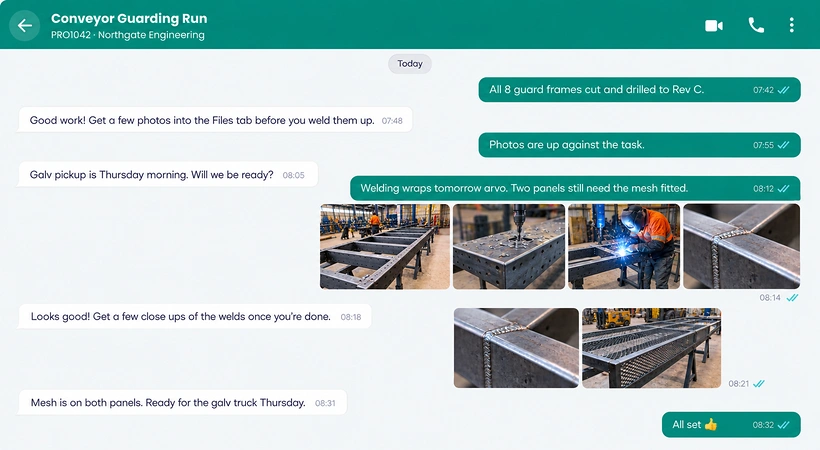
Photos in context
Show the team what you’re looking at.
Project notifications
Keep the right people across what’s happening.
Permissions
Control who can participate in project conversations.
Conversation history
Keep the discussion as part of the project’s history after the work is finished.
Day to day
What does that actually look like?
Someone on site finds a problem.
Take a photo. Put it in the project chat. The project manager can see what they’re looking at and the team can work out what happens next.
The workshop has a question about the drawing.
Ask it against the project. The answer stays there instead of disappearing into somebody’s messages.
Someone wants to know why the job changed.
Go back through the conversation. The discussion that led to the decision is still with the project.
What you get out of it
What changes
Keep job conversations in one place
Stop spreading the story across separate apps and phones.
Give people the context
Talk about the job where the job already lives.
Keep a record of decisions
Look back at what was discussed when you need to.
Make handovers easier
People joining the work can see what’s already happened.
Keep the conversation after the job is done
Useful when a question comes back months later.
-
Discovered their contract work wasn’t profitable.
We didn’t wanna pay 100 grand upfront for a program – but then we found WorkGuru.
Nick Mazzella, Administrator, Frontline Trays & Trailers
Fit
Will it work the way we do things?
“Do we need another chat tool?”
Fair question.
“We already use WhatsApp/Teams/text messages.”
Keep using them for the things they make sense for. Project Chat is for conversations you want to stay with the project.
“We don’t want everyone seeing every conversation.”
Project Chat access is controlled through WorkGuru permissions, and project managers can manage participation.
“Our team works out in the field.”
Project Chat is available on mobile as well as desktop.
“What happens when the project finishes?”
The chat closes to new messages, but the history remains attached to the project.
By trade
Where this gets used
Works with
Connected features
Project Management
Keep the conversation with the rest of the job.
Tasks
The people doing the work stay connected to the project.
Project Documents
Keep the files and conversation around the same job.
Notifications
Let people know when there’s something they need to see.
Roles & Permissions
Control who has access to project conversations.
FAQs
Project Chat questions
Does every project have its own chat?
A chat can be created for an active project and stays connected to that project.
Can we use Project Chat on mobile?
Yes. It’s available across WorkGuru on desktop and mobile.
Can we control who uses Project Chat?
Yes. Participation is controlled through permissions and project access.
Does the conversation disappear when the job is finished?
No. The chat closes, but its history remains attached to the completed project.
Keep the job talk with the job.
See how Project Chat works alongside the rest of WorkGuru.