
Feature
Put the job paperwork somewhere people can find it.
Keep drawings, photos and useful records close to the project instead of spreading the job across inboxes, phones and folders.
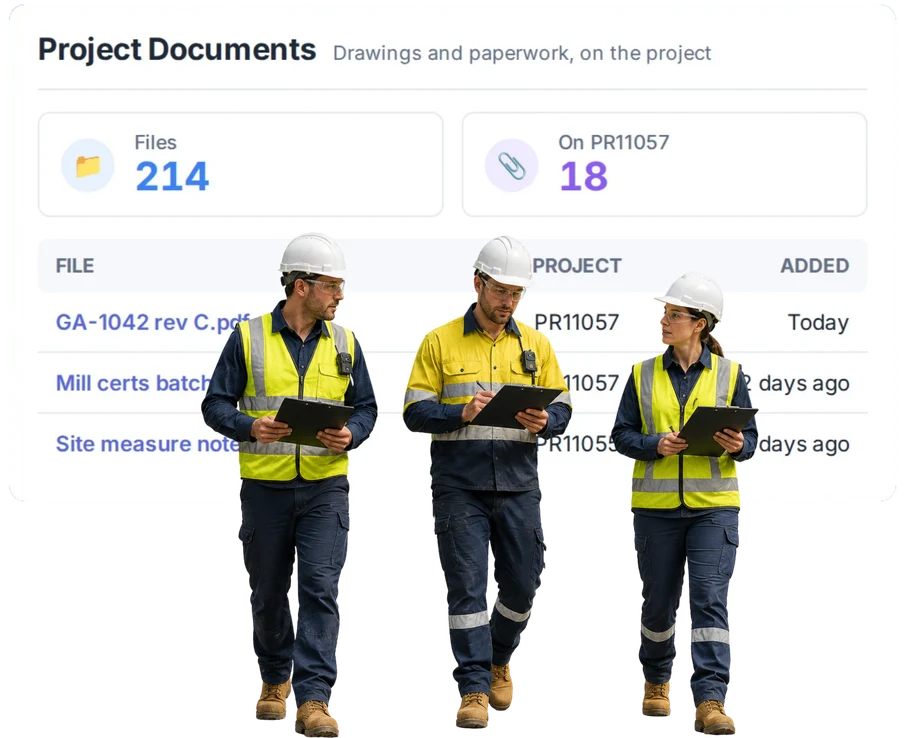
Overview
Keep the documents people need with the work they are about.
The document is usually not missing. It is just somewhere else.
A revised drawing is in an email. Site photos are on a phone. The completed form is in a folder. The workshop is looking at yesterday’s copy.
Keeping useful project documents with the job gives the team a sensible place to start.
What’s inside
What you get
01
Project documents
02
Attachments
03
Photos
04
Job history
05
Connected project information
06
Access control
The reality
Why you need it
A revised drawing comes in and the old one is still floating around.
The classic and expensive one. Someone builds to Tuesday’s revision because that’s the copy they had. Keeping the current drawing on the job at least makes “where’s the latest” a question with an answer.
Site photos never make it back to the job record.
They stay on a phone, useful for about a week and then invisible. The value of a site photo is almost entirely in the future — six months later, when somebody disputes what was there.
The workshop asks the office to resend a file they already sent last week.
Small individually, constant in aggregate, and it interrupts two people every time. It happens because the file lives in a mailbox rather than on the job.
A customer question comes back months later and the job history is scattered.
The answer exists — across an inbox, a folder, a phone and somebody’s memory. Assembling it takes an afternoon and the customer is waiting. On the job it takes a minute.
A handover relies on somebody forwarding a chain of emails.
Which means the next person gets whatever the last person remembered to include, and the context around it is lost. Documents on the job hand over by themselves.
The business has document storage, but the team still cannot find the file while they are doing the job.
This is the real distinction. Your SharePoint or Drive is not the problem and doesn’t need replacing — WorkGuru integrates with SuiteFiles, Google Drive and Dropbox. The gap is the working copy, at the job, where the person doing the work is looking.
How it works
How it works
01
Open the job
02
Add the documents the work needs
03
Keep supporting photos and files with it
04
Use the job as the starting point when somebody needs the information
05
Keep useful history after the work is finished
Capabilities
What it does
Capability
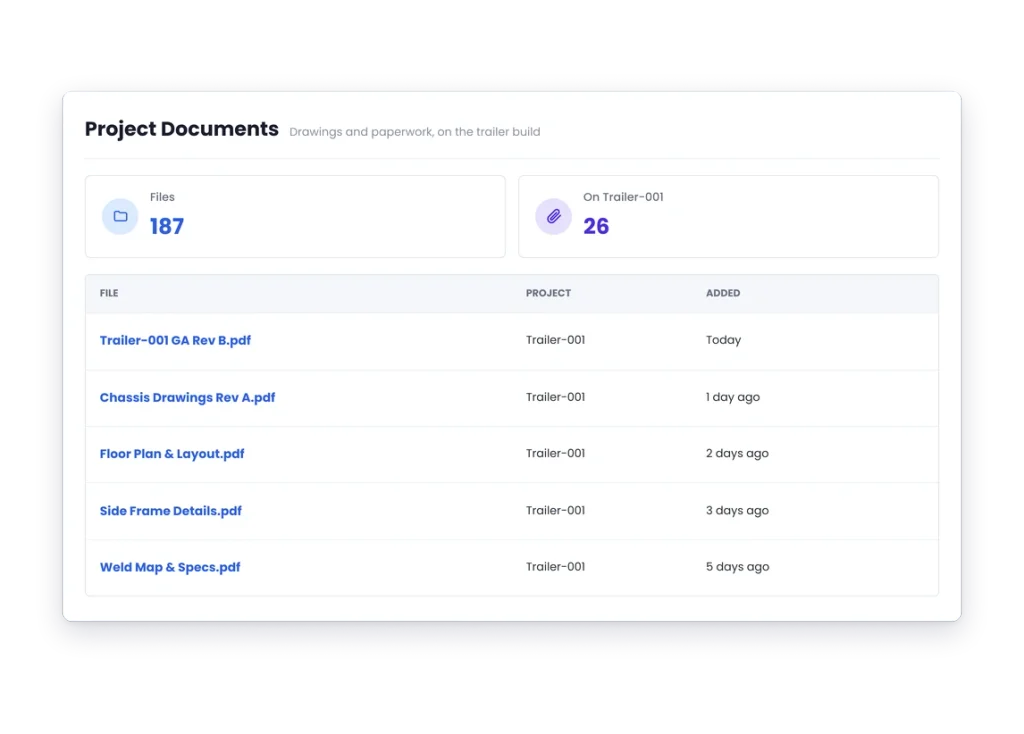
Project documents
Files held against the project rather than in a folder structure only the office understands. Whoever opens the job sees the drawings and records that belong to it, without needing to know who saved what or where.
Capability
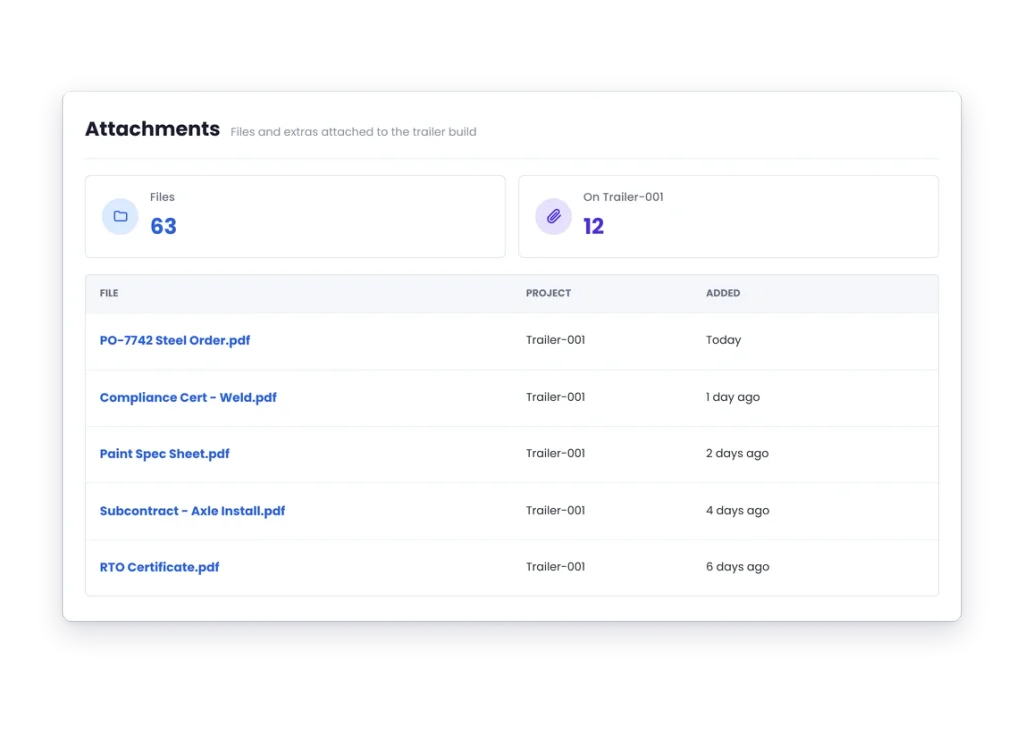
Attachments
The supporting paperwork a job accumulates — delivery dockets, certificates, supplier documents, signed acceptances. Individually none of them matter; collectively they’re what you need when a question comes back and the job finished eight months ago.
Capability
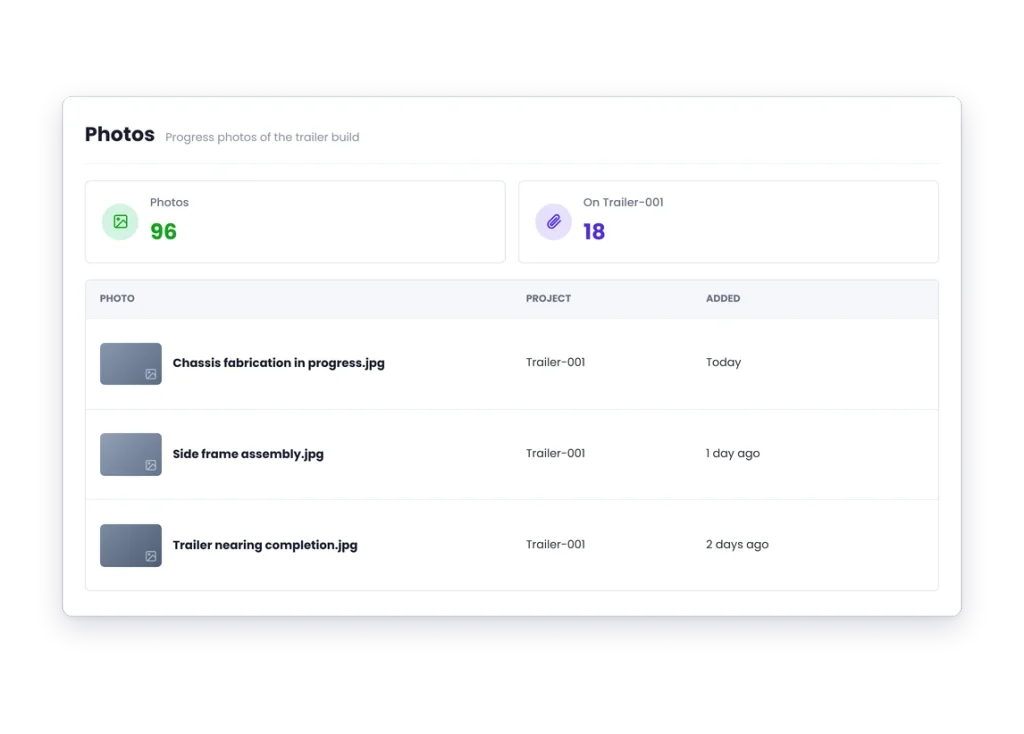
Photos
Often the most useful thing on the job. A picture of what was there before, of the damage, of the finished work — answering questions later that no written note covers, and settling disputes that would otherwise be one person’s word against another’s.
Job history
Documents stay attached to the project, so a finished job keeps its record. That’s usually when you want it: the warranty claim, the repeat order, the customer asking what was fitted two years ago.
Connected project information
The documents sit with the quote, the costs and the work rather than in a parallel system. It means the drawing and the job it belongs to are one click apart instead of three folders and a question.
Access control
Who can see project documents follows the roles and permissions you’ve set, so document access isn’t a separate thing to administer.
Day to day
What it looks like on a normal day
A revised drawing comes through.
Put it against the project so the team knows where to look.
Someone takes photos on site.
Keep them with the work instead of leaving them on one phone.
The customer rings six months later.
Open the old job and start with the records kept there.
What you get out of it
What changes
Spend less time looking for files.
Keep job information together.
Make handovers easier.
Keep useful history.
Stop relying on individual inboxes and phones.
-
Discovered their contract work wasn’t profitable.
We didn’t wanna pay 100 grand upfront for a program – but then we found WorkGuru.
Nick Mazzella, Administrator, Frontline Trays & Trailers
Fit
Will it work the way we do things?
“We use SharePoint, Google Drive or Dropbox.”
WorkGuru is about keeping the documents needed to run the job close to the job.
“We have thousands of documents.”
Keep the operational files that matter to the work.
“Our drawings change constantly.”
Exact revision-control behaviour should be confirmed before publishing.
“We need formal document control.”
To set up formal document control in WorkGuru, you need a structured workflow to manage, track, and approve critical project files.
By trade
Where this gets used
Works with
Connected features
FAQs
Documentation questions
Can we keep documents against individual projects?
Yes. Project documents and attachments can stay with the job they are for.
Can we keep photos with project information?
Yes. Photos and other useful attachments can be kept with the project record.
Does WorkGuru replace SharePoint or a document management system?
Not necessarily. It is focused on keeping the operational files people need while running the work.
Can we control who sees project information?
WorkGuru includes roles and permissions; exact document-level permission behaviour should be product-reviewed.
Can WorkGuru manage drawing revisions?
For managing actual drawing files and their engineering revisions, you would need to use a dedicated CAD/PDM system or a document management tool alongside WorkGuru.
Can we look back at documents after the job is finished?
Project history is intended to remain useful when old work needs to be checked later.
Stop starting with the inbox.
See how the drawings, photos and job records your team actually uses can stay closer to the work.