
Home / Features / Scheduling / Planner
Planner For Field Service Scheduling
Turn a customer call into a priced, scheduled job on one hourly board, book each task to the right person, and tell your field team exactly where they need to be.
★★★★★ Xero App Store rating · 400+ businesses
New booking · 13:00–15:30
17 drafts ready to publish
Overview
Who, when and what, on one screen
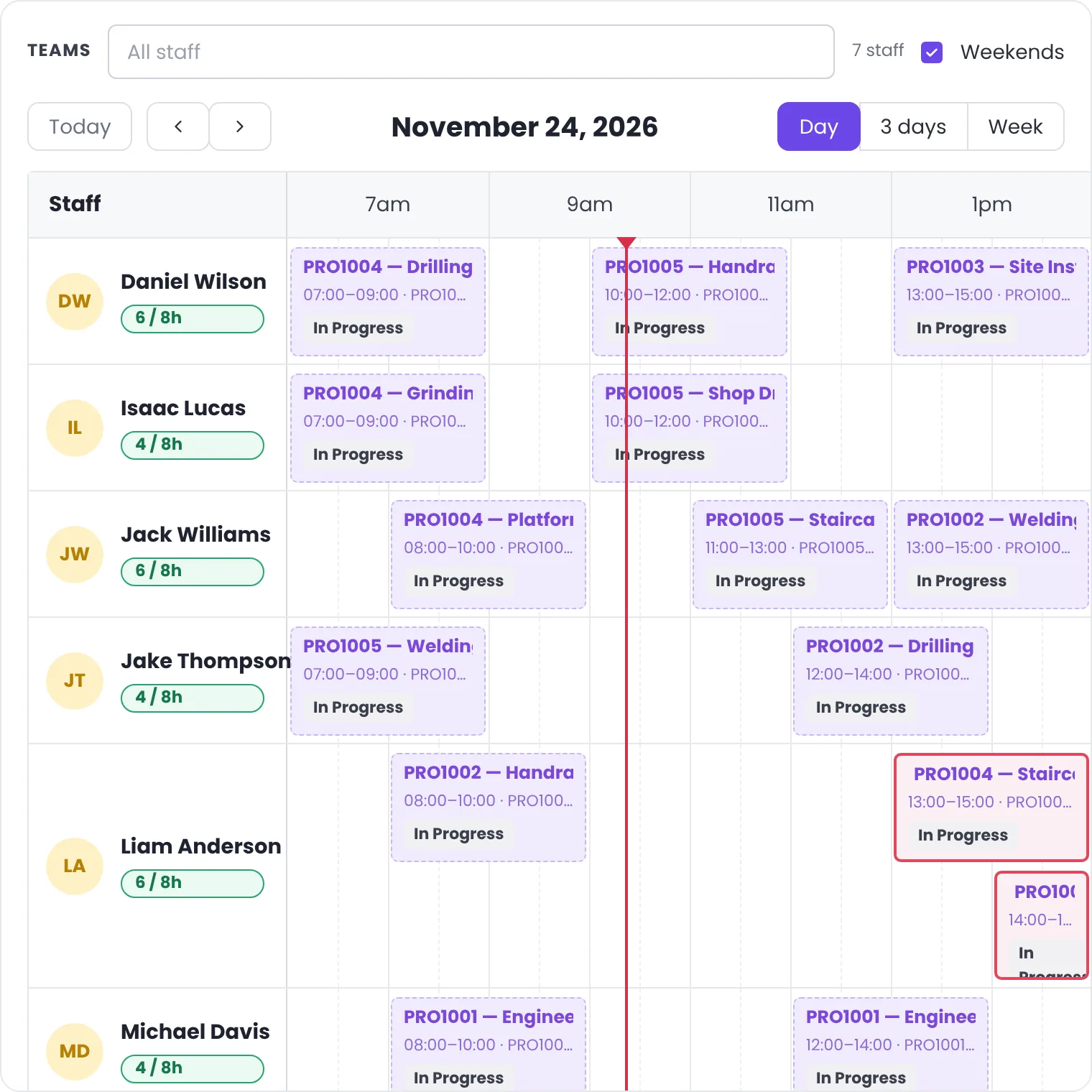
The Planner is an hourly booking board in WorkGuru, with a row for each person on your team and a list of open jobs still waiting to be booked.
Find a gap, drag across it and the job is created and booked in one step. Every booking carries the job, the task, the site and the customer, and every job the Planner creates is a full WorkGuru project, with materials, timesheets, purchasing, job costing and invoicing.
JobPRO1005 – Fabricated Steel Access Platform
WhenTue 24 Nov · 10:00–12:00
Length2 h
Site24 Industry Drive, Brisbane QLD
TaskHandrail Fabrication
Team memberDaniel Wilson
BookingDraft, not sent
Example booking from demo data.
What you get
Book the job, not just the person
Create jobs on the board
Drag across a team member’s row at the time you want and a new service job opens, priced from your template for that customer.
Book every task
Jobs list their tasks, so you can drag the site work, the install and the workshop prep onto the right people.
Book exactly the time it needs
A booking is the length you drag. The job’s labour forecast comes from what you booked, so job costing reflects the real plan.
Catch clashes early
Double bookings are flagged on the board, and booking past a job’s due date asks whether to move the job’s dates or keep them.
Draft first, publish when ready
Bookings start as drafts, so you can build tomorrow’s schedule without pinging anyone. Publish tells your team in one go.
Keep the field team informed
Published bookings send a notification and an email with the job, task, time and site, and drop into each person’s own calendar.
How it works
From phone call to booked job
Plan
See the whole team on one board
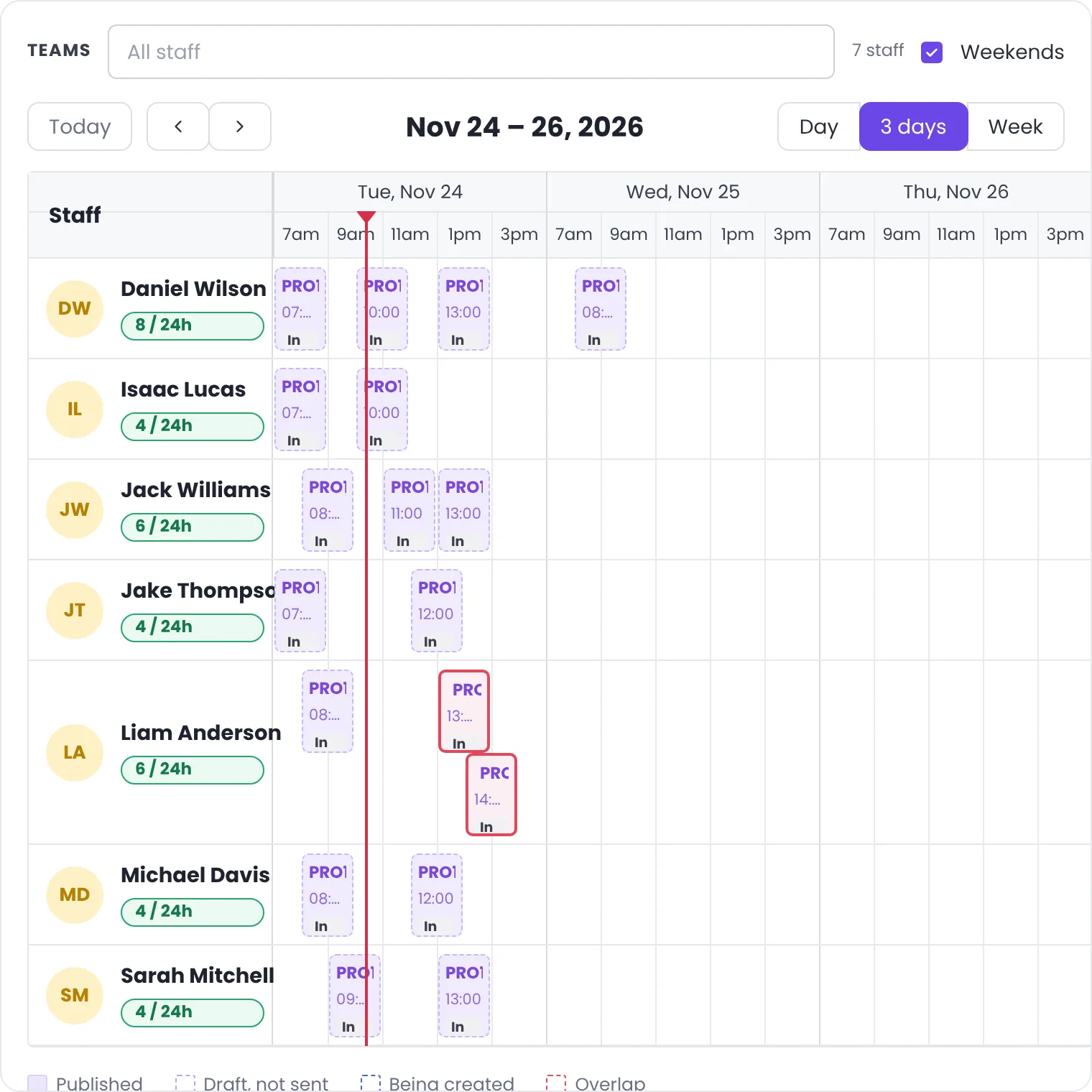
Switch between Day, 3 days and Week, and filter by team to see just the field crew or just the workshop.
- Each row shows the hours booked against the day, such as 6 / 8h
- Published, draft, being created and overlapping bookings each look different
- Office and field see the same bookings on the Planner and Staff Schedule
Create
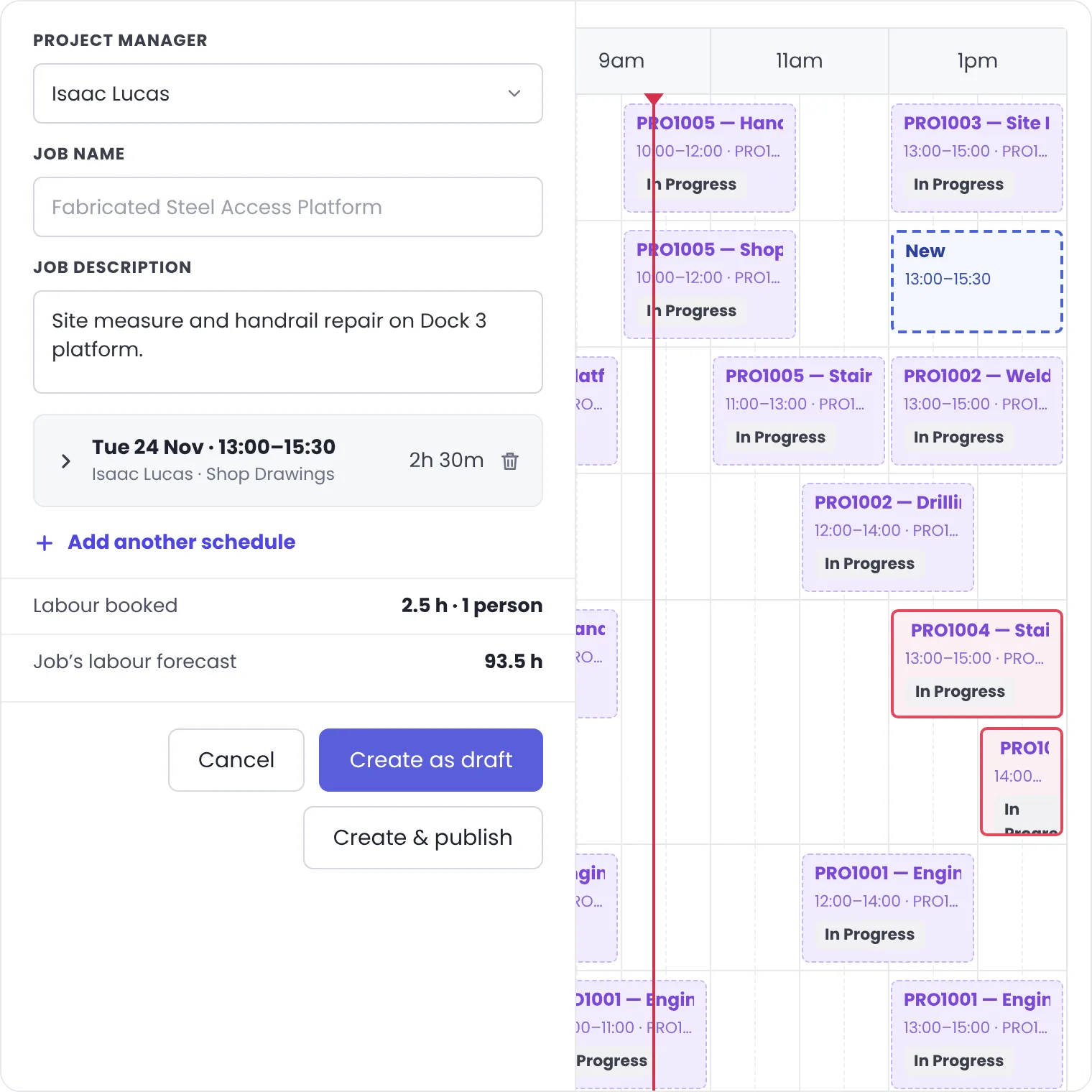
Create a service job right on the board
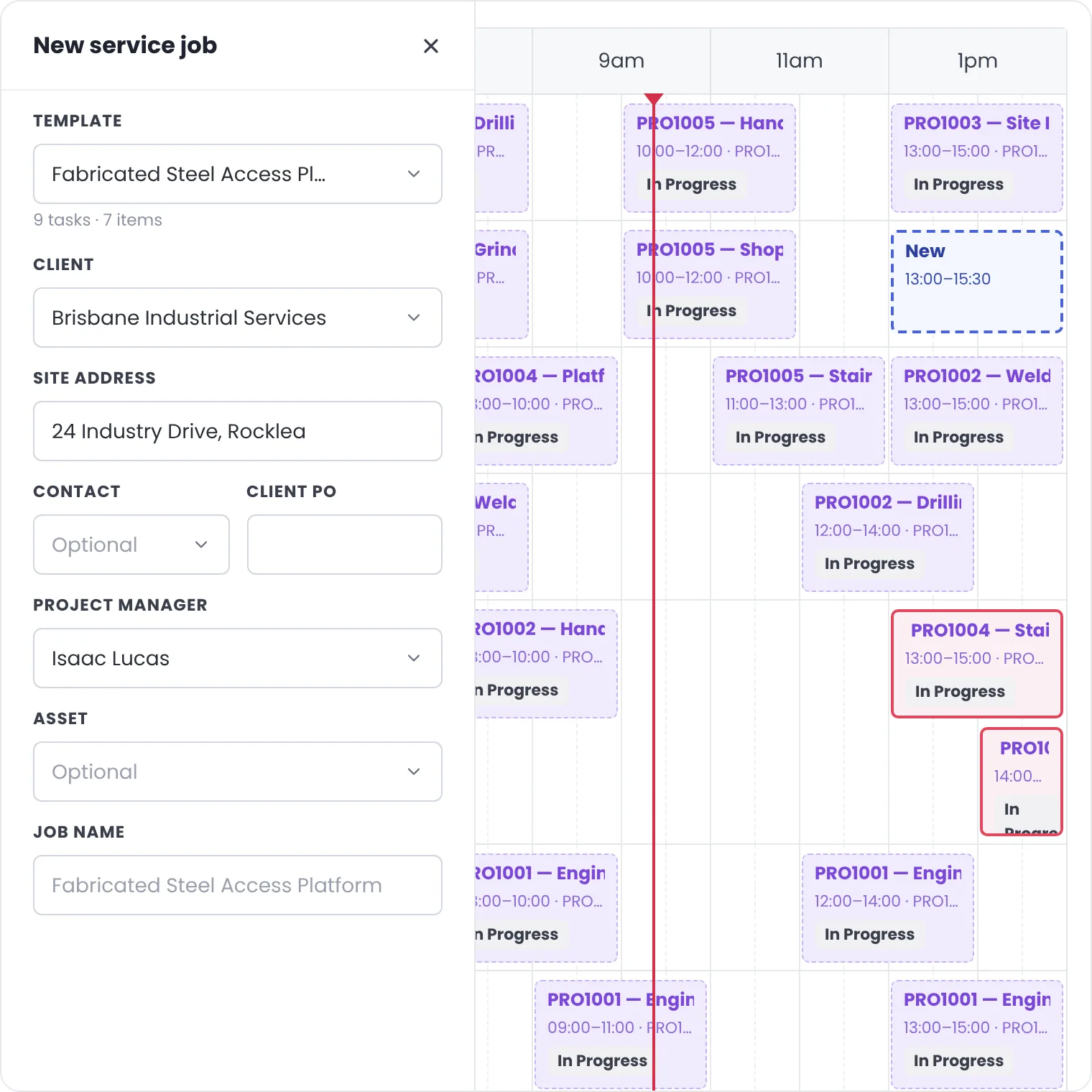
Drag across someone’s row and the new service job panel opens beside the board with the booking already filled in.
- Pick a template, such as your standard service call, an install or a callout
- Choose the client, site address, contact and project manager
- The job is priced from the template for that customer, just like on the project page
Book
Drag each task to the right person
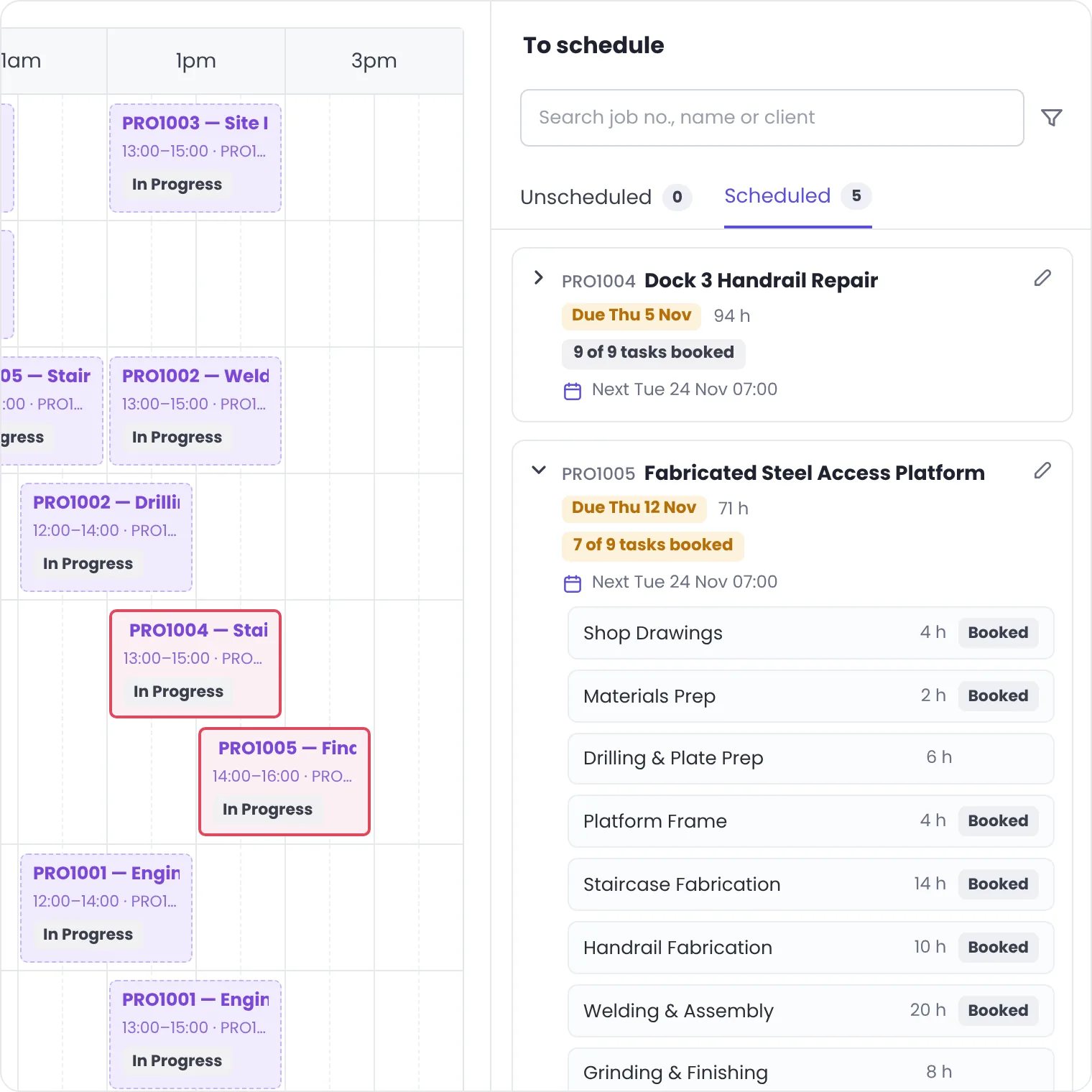
The To schedule list holds open jobs. Expand one to see its tasks and drag each onto the right row.
- Unscheduled and Scheduled tabs, with search by job number, name or client
- Each job shows its due date, total hours and how many tasks are booked
- Tick Auto schedule all remaining time to book the rest on drop
Forecast
Book the hours, and the forecast follows
Drag a two-hour slot or a whole afternoon. The booking is the length you drag.
- Add another schedule to book more people or more time on the same job
- Labour booked shows the hours and people before you create the job
- The job’s labour forecast comes from the booked time, not a template guess
Check
Catch problems before they happen
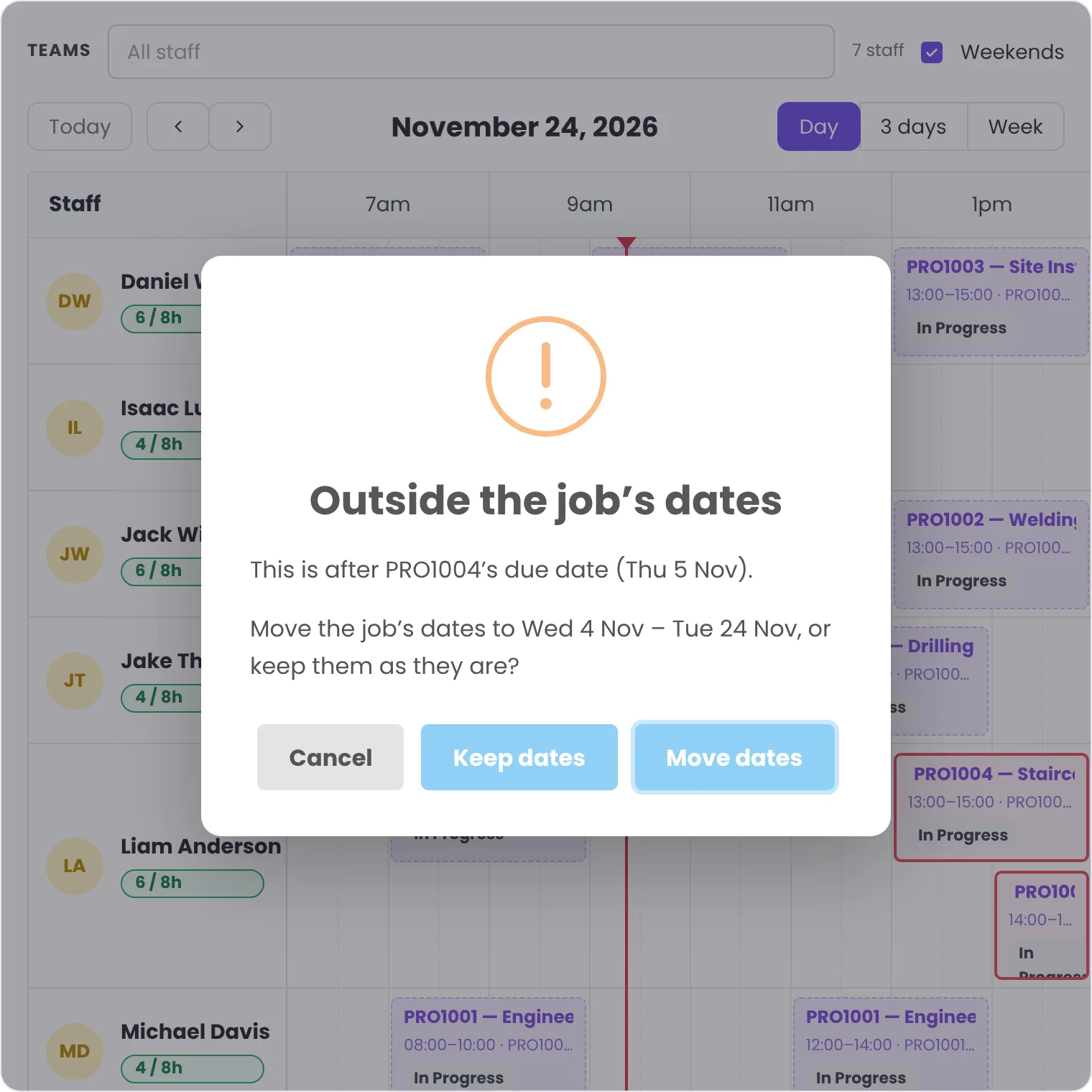
The Planner checks each booking against your team’s day and the job’s dates.
- Overlapping bookings are outlined in red on the board
- Book past a due date and you choose to move the job’s dates or keep them
- Everyone’s hours for the day show on their row, so you can see who has room
Publish
Publish once, and your team knows
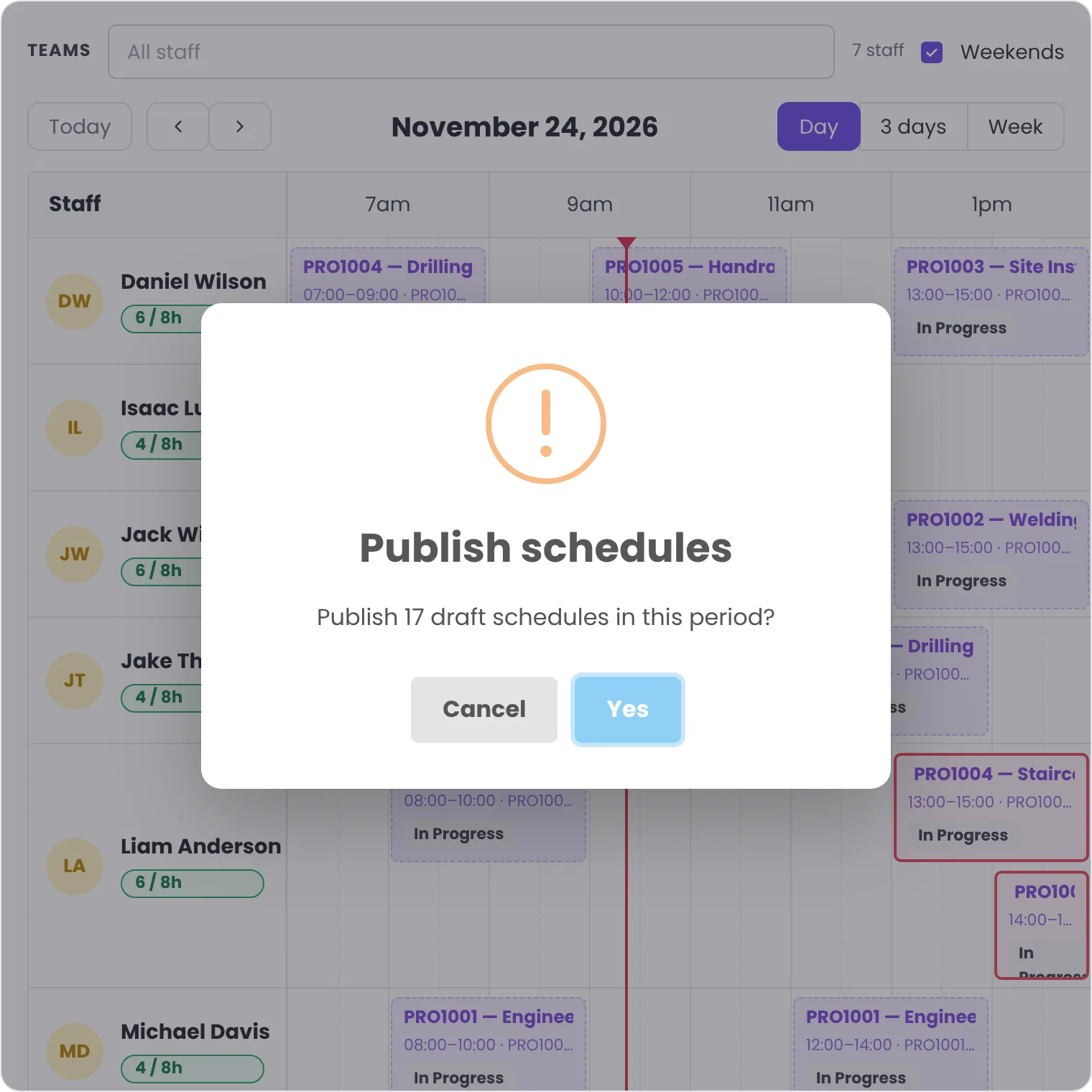
Build the schedule as drafts, then publish every draft in the period at once.
- Create as draft, or Create & publish straight away
- Published bookings send a notification and email with the job, task, time and site
- If a booking is moved, changed or cancelled, they’re told again
Details
Everything the crew needs, one click away
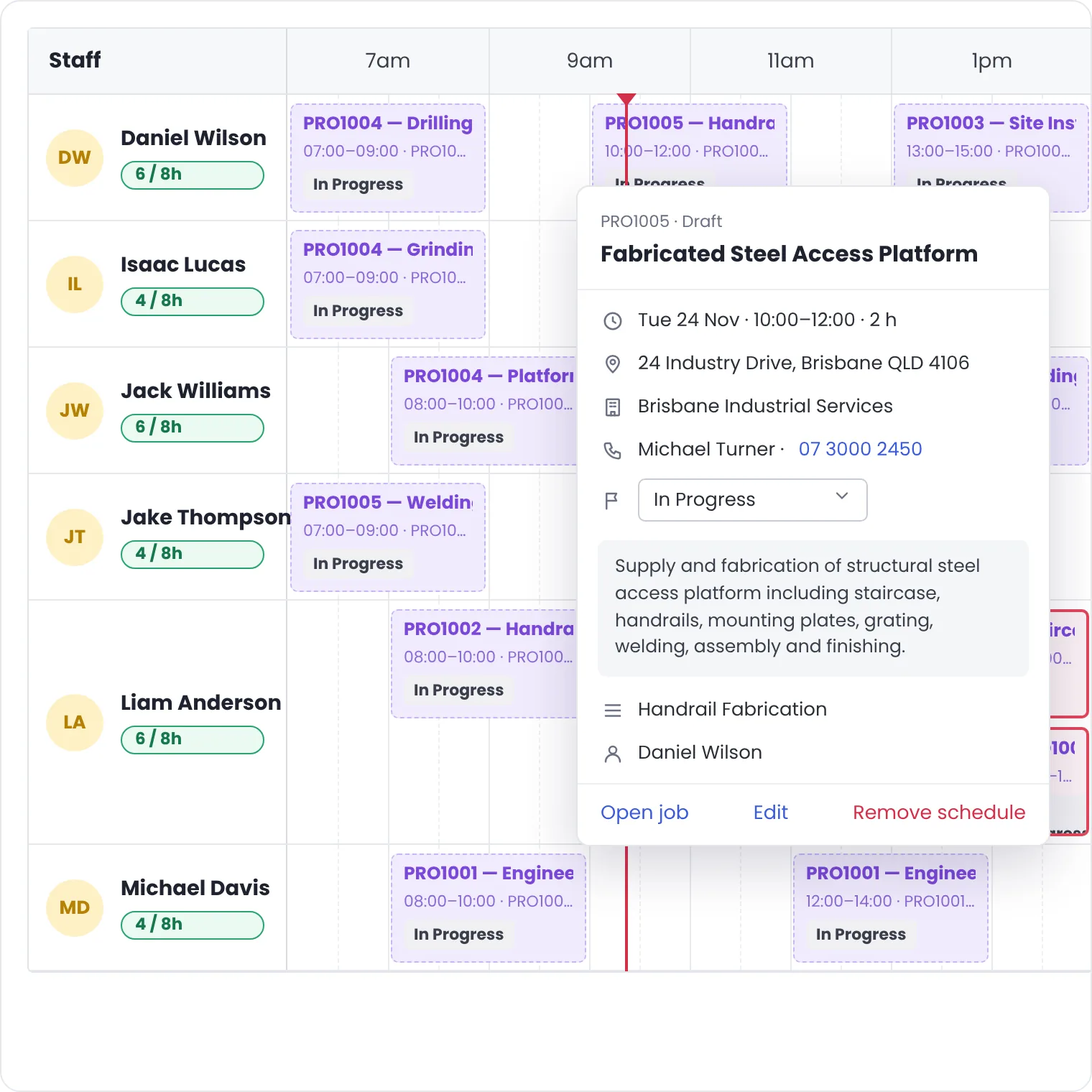
Click any booking to see who, when and where, plus the job and task it belongs to.
- Time, site address, client and contact phone number
- Job description, task and the team member booked
- Open the job, edit the booking or remove it from the same card
Available now in beta
The Planner is available to customers in the WorkGuru Beta program. Once it’s switched on, you’ll find it under Scheduling › Planner. Contact our team to join the Beta program.
Works with
Connected features
Job Costing
Jobs created on the Planner forecast labour from the time you book, so costs reflect the real plan.
Task Management
The Planner books work at task level, so each person sees exactly what they’re doing.
Timesheets
Booked work flows through to the timesheets your team records against the same job.
Questions
Planner FAQs
Where do I find the Planner?
Once the Planner is switched on for your account, you’ll find it under Scheduling › Planner.
Is the Planner available to everyone?
The Planner is available now to customers in the WorkGuru Beta program. Contact our team to join.
Are jobs created on the Planner full projects?
Yes. Every job the Planner creates is a full WorkGuru project, with the same materials, timesheets, purchasing, job costing and invoicing you already use.
Can one job be booked across several people?
Yes. The Planner lists each job’s tasks, so you can drag each task onto a different person, such as a technician on site and someone in the workshop prepping parts.
When does my team get notified?
When a booking is published. Bookings start as drafts, and publishing sends each person a notification and an email with the job, task, time and site address. If a booking is moved, changed or cancelled, they’re told again.
Can staff see their bookings in their own calendar?
Yes. Each person has a private calendar link that adds their bookings to Google Calendar, Outlook or Apple Calendar. You can also print a run sheet for each person for the day.
What happens if I book past a job’s due date?
The Planner asks whether to move the job’s dates to fit the booking or keep them as they are.
How is the labour forecast worked out?
When you create a job on the Planner, its labour forecast comes from the time you booked, rather than the template’s estimate.
Book your team on one board
Try WorkGuru free, or book a demo and see the Planner in action.