
Feature preview · Closed beta
Compare supplier prices before you commit
Supplier RFQs in WorkGuru are designed to let you ask suppliers to price the same list, compare their answers line by line and quote your customer from the prices you prefer, before you award a thing.
You need prices from three suppliers before you can quote the customer. One replies in an email, another sends a spreadsheet, and the third needs chasing. Now someone has to bring it all together and work out what each supplier has actually included.
For businesses buying materials or subcontracting work per job, the preparation behind a customer quote can become a job of its own.
WorkGuru is preparing a supplier Request for Quote (RFQ) module for a closed beta. It is designed to bring supplier requests, responses and comparisons into the same workflow as your customer quote and purchase orders.
Ask suppliers to price the same list, compare their answers and choose the prices you want to quote from. Award the supply work once your customer has accepted.
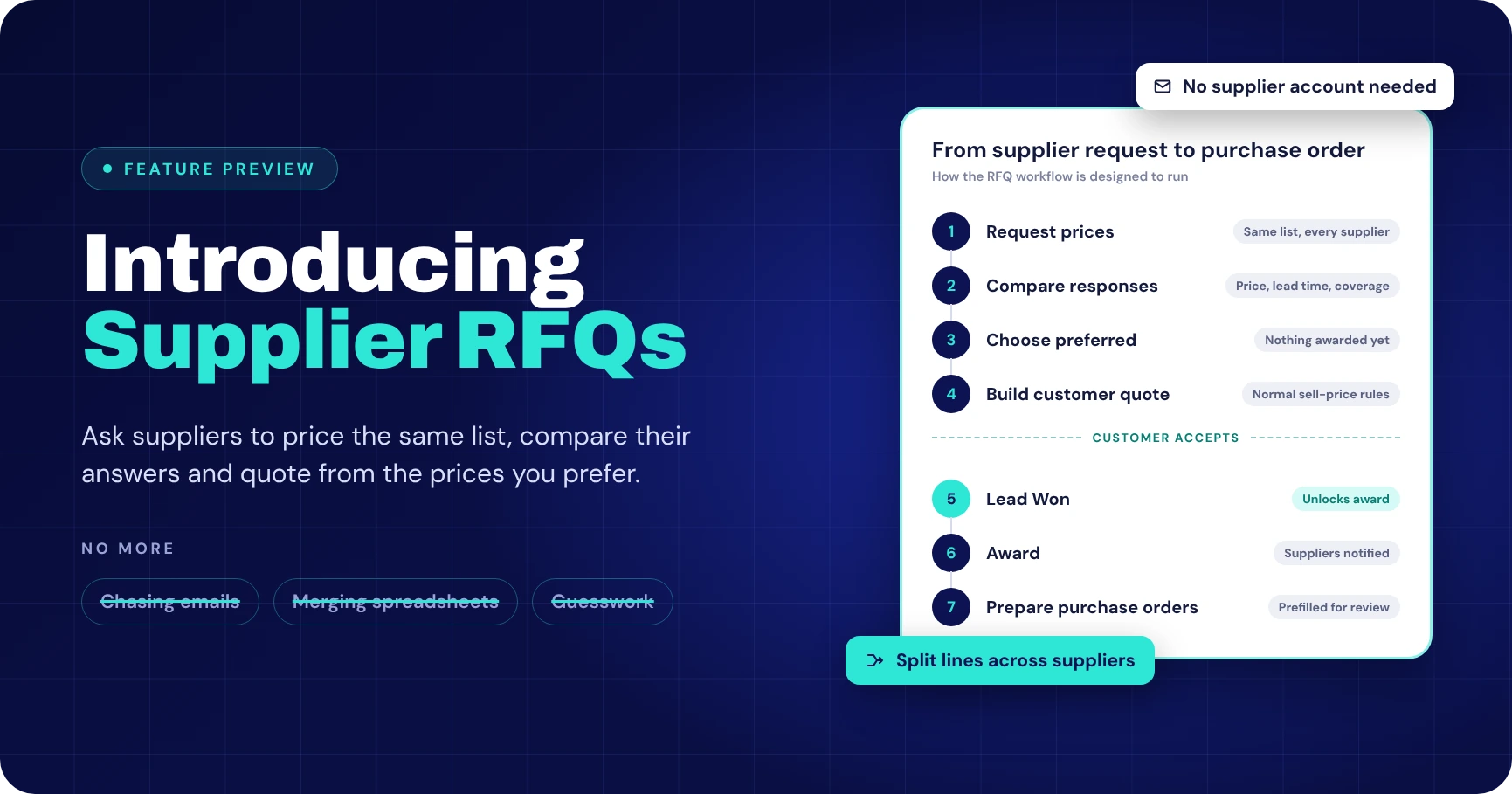
How the RFQ workflow runs
Seven steps, with one deliberate checkpoint in the middle: nothing is awarded until your customer says yes.
Request prices
Create an RFQ from the Lead and send the same list to every supplier.
Compare responses
See prices, lead times, notes and line coverage side by side.
Choose preferred
Pick a preferred supplier for the whole RFQ or for each line. Nothing is awarded yet.
Build the customer quote
Preferred lines feed a draft quote using your normal sell-price rules.
Customer accepts
Mark the Lead Won
This is what unlocks the award step.
Award
Award the relevant lines. Responding suppliers are notified of the outcome.
Prepare purchase orders
Open a prefilled purchase order for each winning supplier, check it and save it.
Workflow illustration based on the planned RFQ design. Not a product screenshot.
What is a supplier RFQ?
An RFQ, or Request for Quote, is a request asking suppliers to price specified materials, products or services. You provide the scope and quantities, and suppliers respond with their prices and supporting details.
For a fabricator, that could mean sourcing materials for a new assembly. For a builder or installer, it could mean obtaining prices for a package of products or subcontract work.
A useful RFQ process gives suppliers a consistent starting point and gives your team a clear way to assess the responses before deciding what to buy.
Give every supplier the same starting point
The planned WorkGuru workflow starts from a Lead. Create an RFQ, add the items you need priced and set a closing date and time.
- Clear lines: each line can include a name, SKU, description, quantity and unit.
- Supporting files: attach drawings or specifications to explain the requirement.
- Three ways to start: build the request from scratch, duplicate an earlier RFQ or use a reusable template.
- Templates that remember: hold standard line sets and the suppliers you regularly ask to price them.
For repeat purchasing packages, that means less rebuilding of the request each time a new opportunity arrives.
Let suppliers respond without another software account
Suppliers receive an email containing their own private response link. They do not need a WorkGuru account to reply.
- Everything against the line: prices, currencies, lead times and notes, plus supporting files.
- Offline if they prefer: a supplier line sheet can be downloaded as a CSV, completed offline and uploaded back into the response.
- Room to change their mind: suppliers can update a submitted response until the RFQ closes, or decline with a reason.
- Reminders built in: automatic reminders are designed to follow up suppliers who have not responded before closing.
This gives your team a consistent place to gather answers while allowing suppliers to respond through the emailed link.
Compare more than the total price
A low total does not tell you whether every item has been priced or whether the delivery timing will suit the job.
WorkGuru’s comparison view is designed to show prices, currencies, lead times and notes for each line and supplier, alongside totals and line coverage. Your team can see which parts of the request have been answered and where further clarification may be needed.
The workflow supports a preferred supplier for the whole RFQ or different preferred suppliers for individual lines. Here is why that matters.
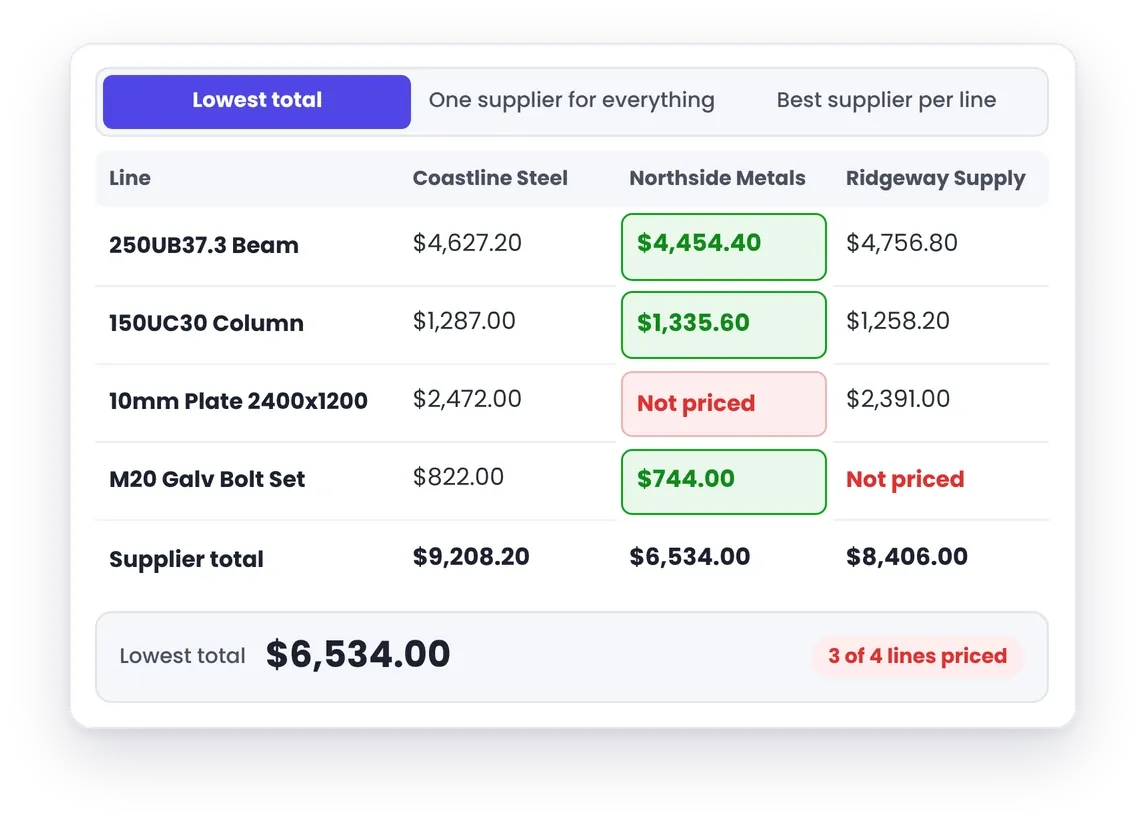
Read the same responses three ways and you get three different answers:
- Lowest total ($6,534.00): Northside looks cheapest by over $2,600, but it hasn’t priced the plate. The gap is in the total, not on the job.
- One supplier for everything ($9,208.20): Coastline is the only supplier covering all four lines, with everything inside five days.
- Best supplier per line ($8,847.60): beam and bolts from Northside, column and plate from Ridgeway covers every line. The catch is Ridgeway’s 10-day lead time on plate. If the job can’t wait, moving that line to Coastline makes it $8,928.60.
That is the decision the comparison view is built to support: consider what is covered, when it can be supplied and what the supplier has said about the requirement, then build the combination that suits the job.
Choose preferred prices before awarding the work
There is an important gap between preparing a customer quote and being ready to commit to suppliers. WorkGuru’s RFQ design keeps those decisions apart.
Before the customer says yes
Preferred
- Records the prices you want to quote from.
- Can be set for the whole RFQ or line by line.
- Feeds a draft customer quote using your normal sell-price rules.
- Sends no award notification and commits nothing to the supplier.
After the Lead is won
Awarded
- Only possible once the linked Lead is marked Won.
- Responding suppliers are notified of the outcome.
- Opens a prefilled purchase order for each winning supplier.
- Treat a saved award as final.
This keeps supplier selection connected to customer pricing without simply treating the supplier’s cost as your selling price. The quote-building process also tracks imported RFQ lines, so running it again does not add the same lines twice.
Supplier RFQs · Feature preview
Want RFQs in Your Purchasing Process?
The RFQ module is being prepared for a closed beta. Talk to the team about current availability and whether it fits the way you buy.
Move to purchase orders after customer acceptance
In the proposed workflow, supplier award is only permitted once the linked Lead is marked Won. That keeps the award step tied to winning the customer’s work.
Once awarded, responding suppliers are notified of the outcome. Your team can then open a prefilled purchase order for each winning supplier, with products matched by SKU against your product list.
The purchase order opens in WorkGuru’s normal editor for review. It is not saved until someone saves it, giving your team a chance to check the details before proceeding.
An example for a fabrication business
Imagine you are quoting a fabrication package that needs several materials sourced externally.
You create an RFQ from the Lead, attach the relevant drawings and send the same requirements to your usual suppliers. When the responses arrive, you compare the line prices, coverage and lead times.
One supplier may be preferred for most of the package, while another is better suited to a particular item. You select the preferred lines and use them to help build the customer quote.
If the customer accepts, you mark the Lead Won, award the relevant lines and prepare purchase orders for the winning suppliers.
That is the workflow the module is designed to support: a clear path from requesting prices to quoting the customer and placing the order.
For suppliers who also use WorkGuru
The module also includes a connection option for suppliers who have their own WorkGuru account. Once the connection is accepted, RFQs can arrive in their WorkGuru inbox as well as by email.
- Respond in WorkGuru: connected suppliers can reply from their own account and link an incoming RFQ to one of their own Leads.
- Optional automation: settings can create a Lead and draft quote automatically when a request arrives.
- Private by design: each supplier sees its own request and response. Other suppliers’ identities and prices, and the buyer’s internal cost and selling prices, are not shared through the supplier response view.
FAQs
Frequently Asked Questions
Do suppliers need a WorkGuru account?
No. The planned email response portal allows suppliers to answer through a private link without creating an account. Suppliers who also use WorkGuru can connect and respond from their own inbox.
Can I split the requirement across suppliers?
Yes. The module is designed to support preferred selections and awards for the whole RFQ or individual lines, allowing different items to be sourced from different suppliers.
Does choosing a preferred supplier award the work?
No. Preferred selections support customer quoting. Award is a separate step, gated on the linked Lead being Won.
Will the purchase order be saved automatically?
No. The workflow opens a prefilled purchase order in the normal editor. A user reviews and saves it.
Is the RFQ module available now?
The module is being prepared for a closed beta. Contact the WorkGuru team to ask about current availability and whether the workflow is a fit for your business.
Want to see how this could fit your purchasing process? Speak with the WorkGuru team about the RFQ workflow and current availability.