
Home / Features / Team & Security / GPS & geolocation
GPS & Geolocation For Timesheets
Capture where mobile timesheets start and finish, know when staff leave the job site, and see the route behind any shift, with the project and task behind every pin.
★★★★★ Xero App Store rating · 400+ businesses
Left site · 10:42
VRPRO1304 · Off site 25m
Overview
Hours booked, with a location attached
WorkGuru records where mobile timesheets start and finish, and when staff leave the job site during a shift.
Open the geolocation map to review those locations by date range and team member, and click any pin to see the project, task and timesheet behind it. Turn on the location trail and you can also see the route behind each shift. On Approve Timesheets, an Off site badge shows how long someone was away from the job.
Team memberMichael Davis
Shift08:02 – 16:31
ProjectVRPRO1304 – 4 Cylinder Logbook Service
TaskWorkshop Labour
Length8.48 hrs
Off site25m
RouteView route →
Example timesheet. Off site and route need geolocation turned on.
What you get
Know where the time was booked
A location on every timesheet
When a mobile timesheet starts and finishes, WorkGuru records where it happened: latitude, longitude, and the address when one is available.
One map for the whole team
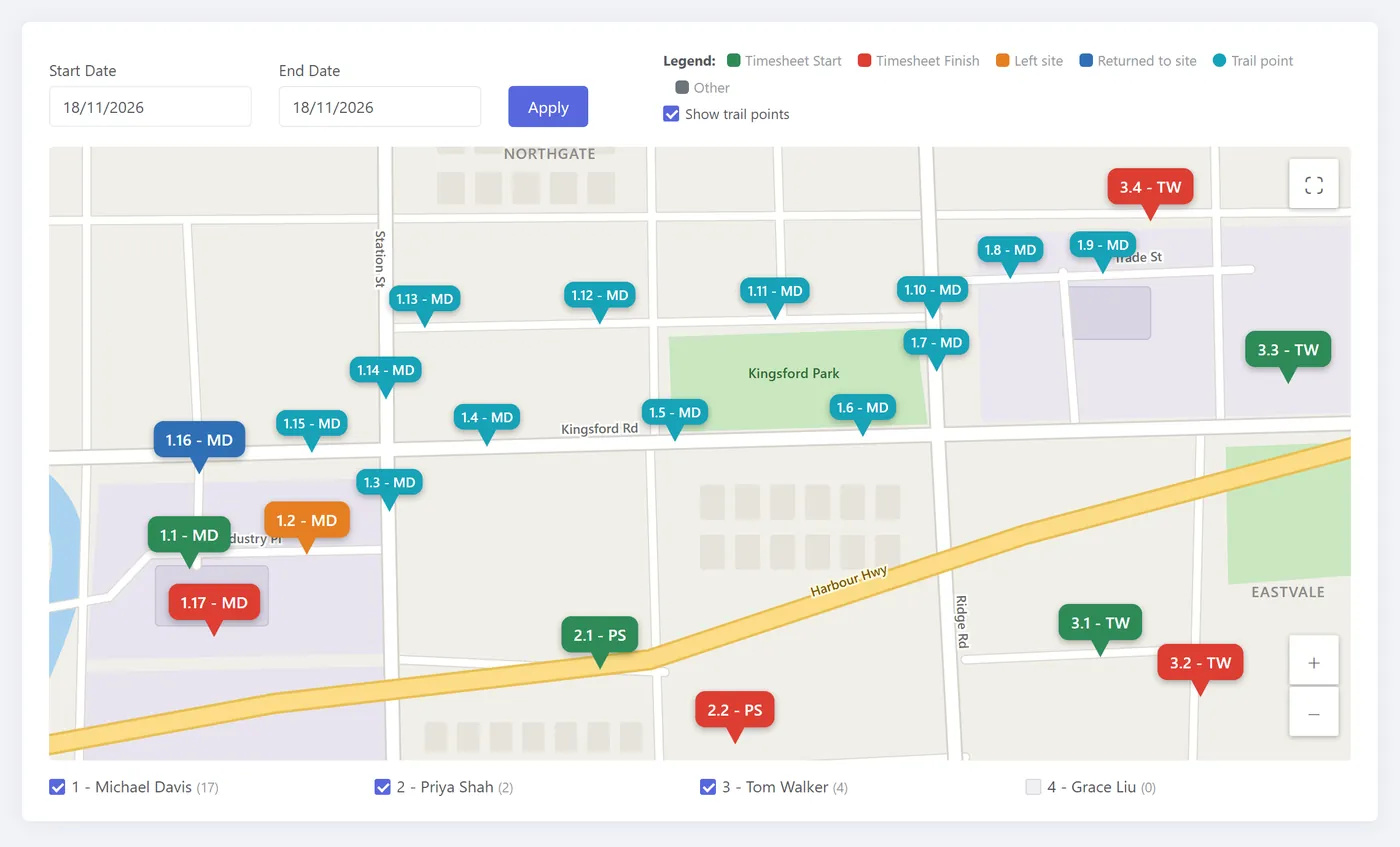
Pick a date range and choose the team members you want to see. Every timesheet start and finish shows as a pin on the map, along with leaving and returning to site, and trail points if you turn them on.
Straight back to the job
Each pin shows the timesheet, project, task, start, finish, length and status, so a location always comes with its context.
Know when someone leaves site
When a worker clocks in on the mobile app, WorkGuru marks out the area around where they started. If they leave and come back during the shift, it’s recorded, and Approve Timesheets shows how long they were away.
See the route behind any shift
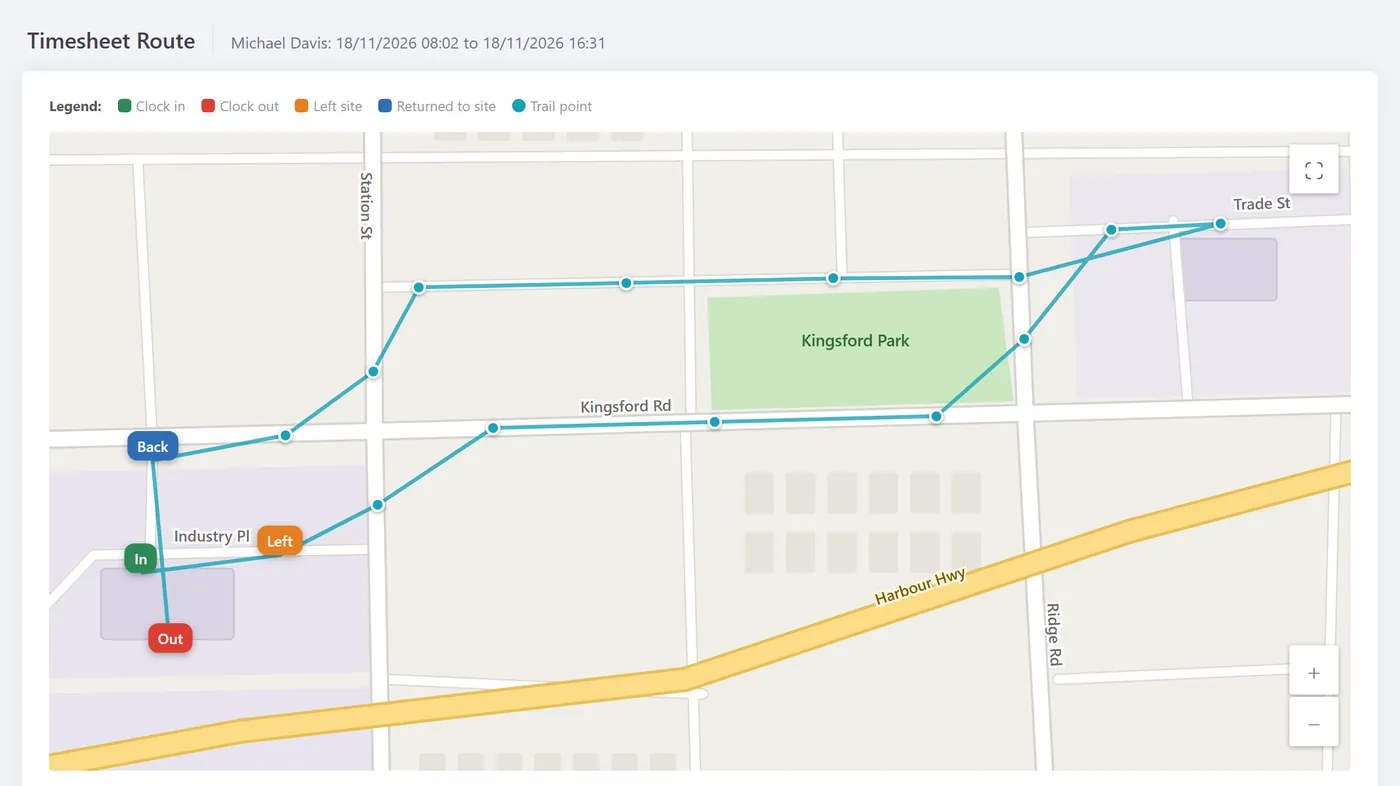
Turn on the location trail and the app records where staff are about every 5 minutes or 200 m while they’re clocked on and moving. Open View route from Approve Timesheets to see the whole shift on one map, in time order.
Privacy built in
Location is only recorded while someone is clocked on. Each worker agrees on their own phone before the job-site alert or trail starts, and can turn those off in the app. Location data older than the period you choose, up to 2 years, is deleted automatically.
How it works
From a setting to a pin on the map
Set up
Switch it on in Settings
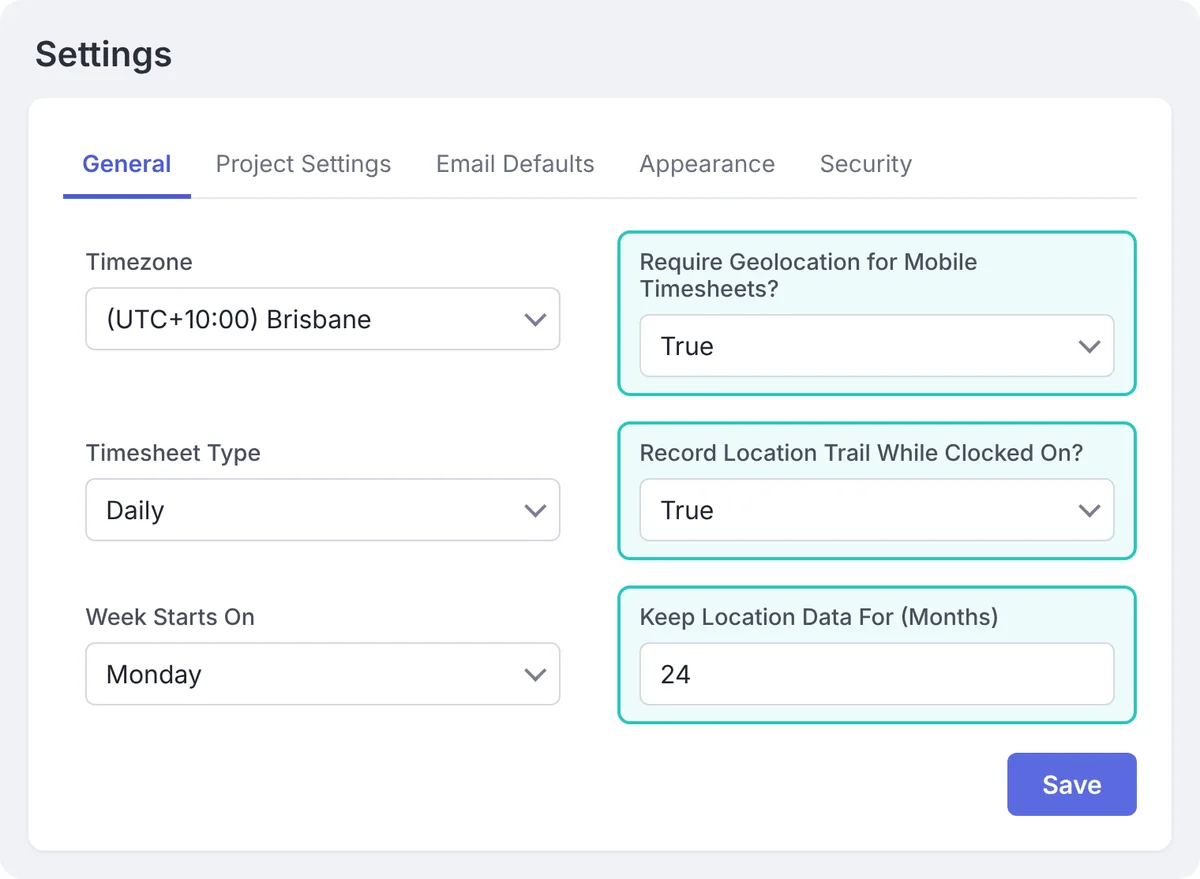
Up to three settings, all under Settings → General.
- Require Geolocation for Mobile Timesheets? Set to True to record clock-in and clock-out locations and turn on the job-site alert.
- Record Location Trail While Clocked On? Set to True if you want routes. It’s off by default.
- Keep Location Data For (Months): anything from 1 to 24. Older location data is deleted automatically.
Review
See the whole team on one map
Choose a start and end date, press Apply, then tick the team members you want to see.
- Green pins are clock-ins, red are clock-outs, orange is leaving site, blue is returning to site, teal is a trail point and grey is other
- Tick Show trail points to add the trail, one week at a time
- The number beside each name shows how many entries they have in that period
- Show or hide people with the tick boxes under the map
Zoom in
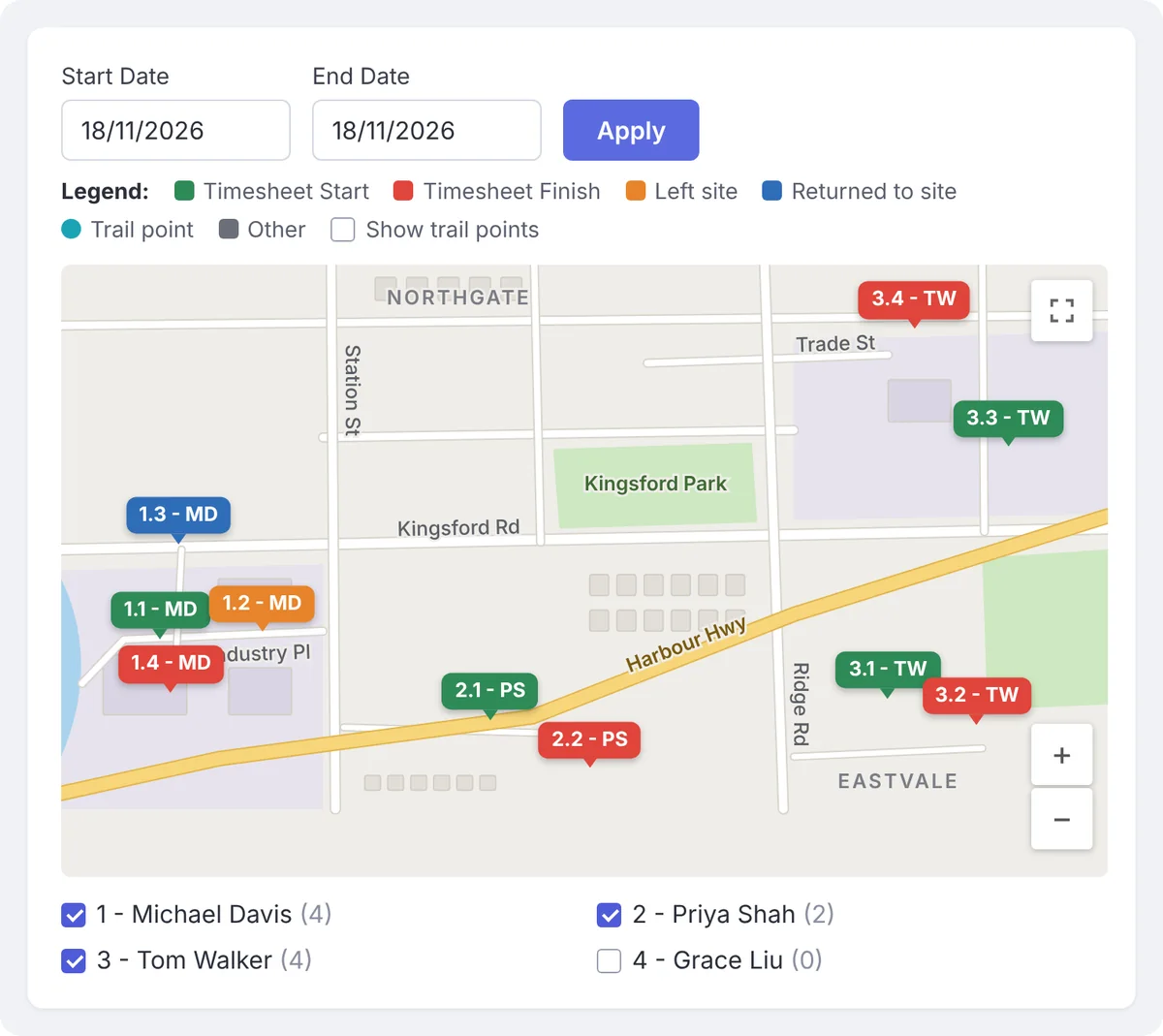
Zoom in to where the work happened
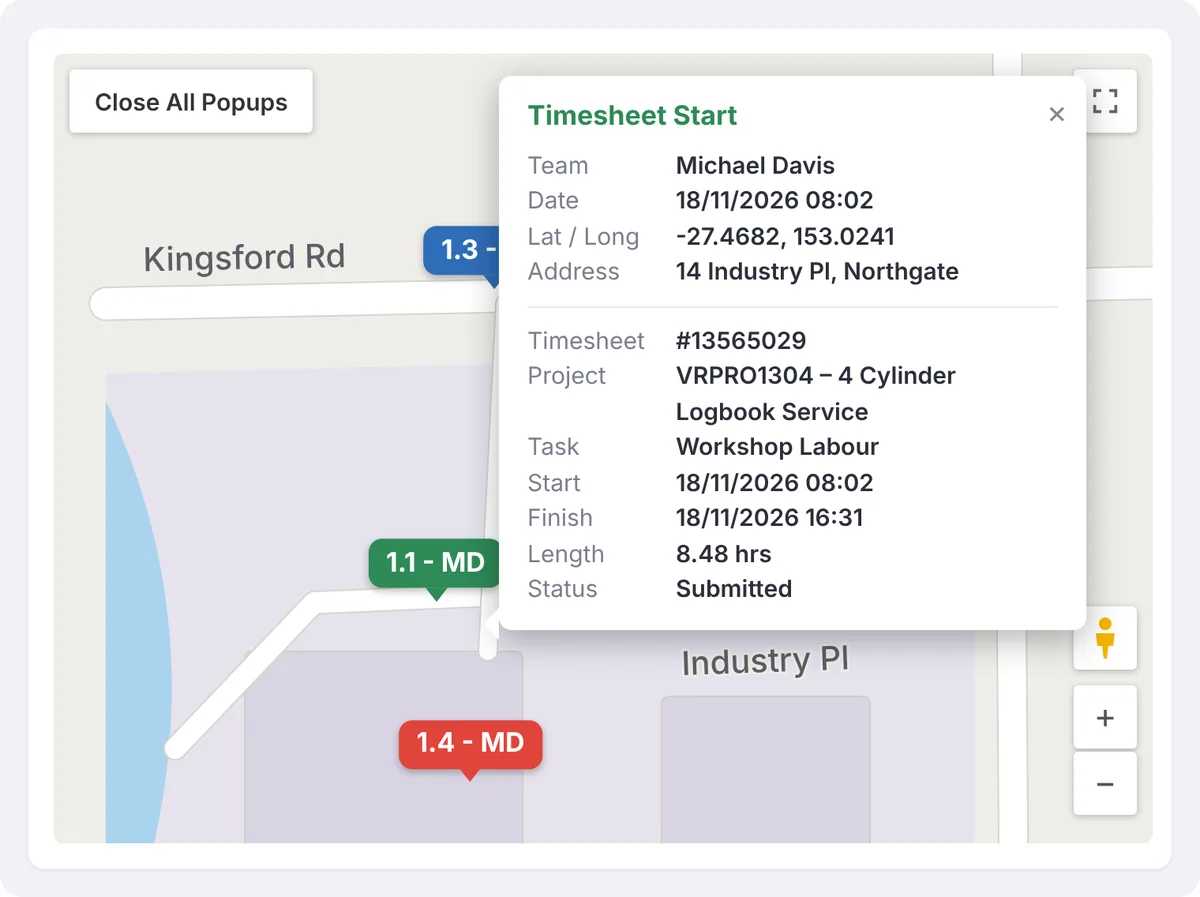
Each pin is labelled with the team member’s number and initials.
- Zoom and pan with the standard Google Maps controls
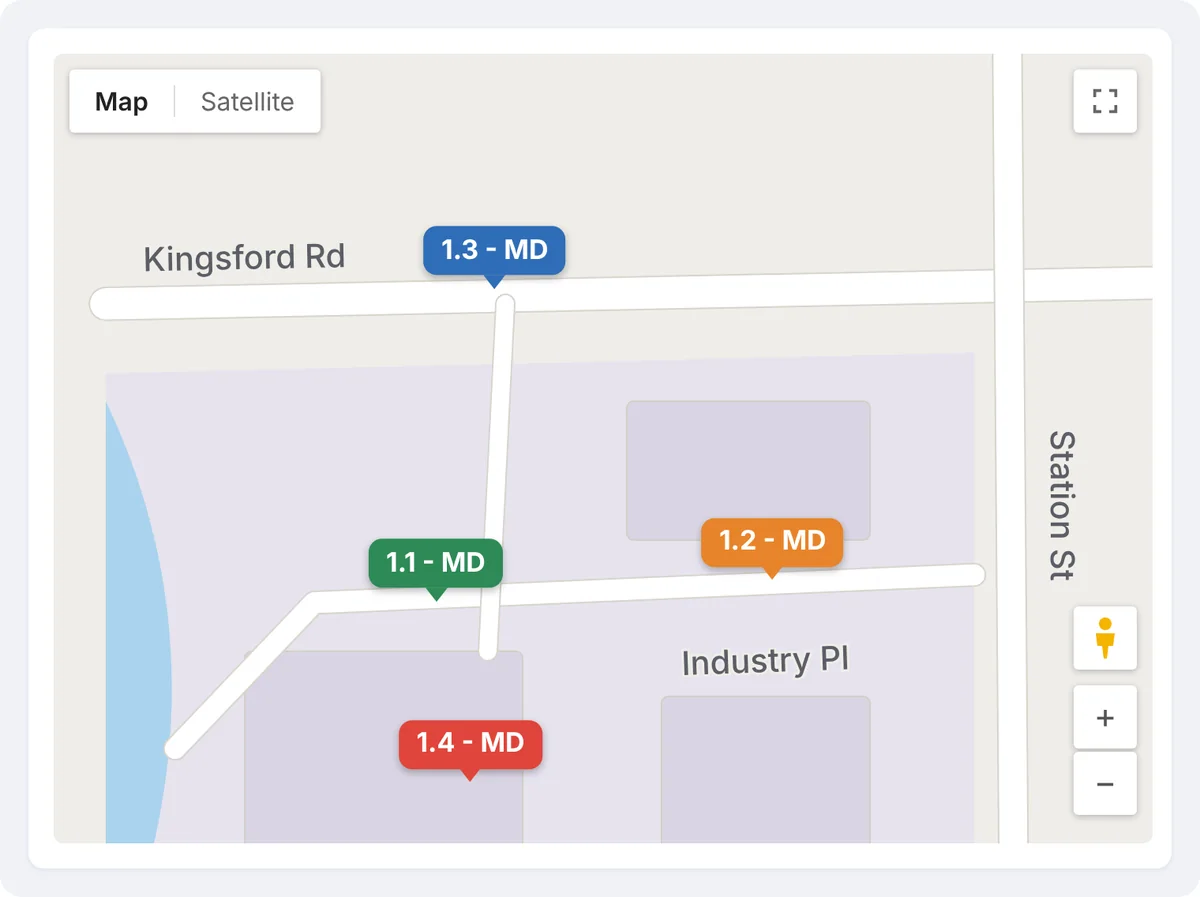
- Jump into Street View to look at the site
Open a pin
Open any pin for the detail
Click a pin to see who, when and where, plus the timesheet it belongs to.
- Team member, date and time, latitude and longitude, and address
- Timesheet number, project, task, start, finish, length and status
- Press Close All Popups to clear the map
Approve
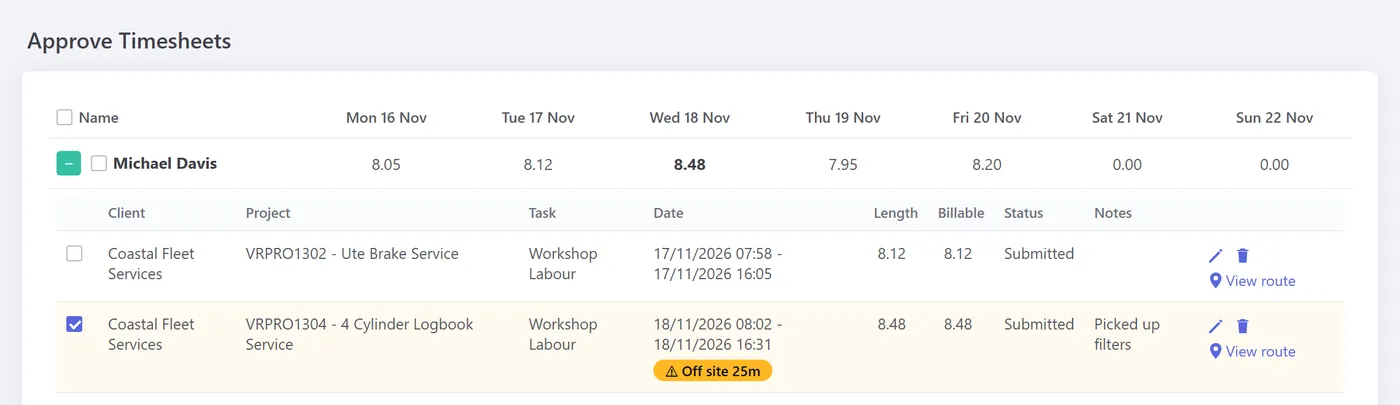
Check the shift before you approve
See where a shift was worked before you sign it off.
- An Off site badge shows how long someone was away from the job site, for example “Off site 2h 10m”
- View route opens a map of that one shift: clock-in, clock-out, leaving and returning, and trail points in time order
- The worker, their approvers and anyone who can view the geolocation map can see a route
Works with the WorkGuru mobile app
Locations come from the worker’s phone through the WorkGuru mobile app for iPhone and Android. Kiosk clock-ins don’t record a location.
Works with
Connected features
Timesheets
Geolocation builds on timesheets, so the hours your team books carry a location with them.
Job Costing
The same timesheets feed your job costs, keeping time, cost and location on one job record.
Task Management
Time is booked against tasks, so every pin shows the task behind the timesheet.
Questions
GPS & geolocation FAQs
How do I turn on geolocation?
Go to Settings, open the General tab and set Require Geolocation for Mobile Timesheets to True. To record routes as well, set Record Location Trail While Clocked On to True.
What does each pin show?
The team member, the date and time, latitude and longitude, and the address when one is available. It also shows the timesheet number, project, task, start, finish, length and status.
What do the pin colours mean?
Green is a clock-in and red is a clock-out. Orange means the worker left the area around their clock-in point and blue means they came back. Teal is a trail point, shown when Show trail points is ticked, and grey is any other location entry.
How does WorkGuru know when someone leaves site?
When a worker clocks in on the mobile app, WorkGuru marks out a 250 m area around where they started. If they leave and come back during the shift it’s recorded, and Approve Timesheets shows how long they were away, for example “Off site 2h 10m”.
Is location recorded outside of work hours?
No. Location is only recorded by the mobile app while the worker is clocked on to a timesheet, and the trail stops at clock-out. Each worker agrees on their own phone before the job-site alert or trail starts, and can turn those off from Location while clocked on in the app’s menu. Clock-in and clock-out locations are still required when your company turns geolocation on.
How long is location data kept?
You choose, from 1 to 24 months, under Settings → General. Older clock-in and clock-out locations, leave and return events and trails are deleted automatically.
Does geolocation work with the Kiosk app?
No. Locations come from the worker’s phone through the WorkGuru mobile app for iPhone and Android. Kiosk clock-ins don’t record a location.
See where the work happens
Try WorkGuru free, or book a demo and see geolocation in action.