
Home/Features/Financial/Retentions
Retentions software to manage money held on your jobs.
Record retention on progress invoices, keep it connected to the project and raise a claim when it becomes due. Give your accounts team a clear record of what has been held and what has been claimed.
Enhanced Retentions is currently in beta. Contact support to request access.
Overview
What is retention management in WorkGuru?
One job, three claims
Job value (ex GST)
$14,820.00
Paid across three progress claims
$14,079.00
Still held back at 5%
$741.00
Example figures based on a demo job, claimed at 40%, 40% and 20%. Retention rates and periods depend on your contract.
WorkGuru connects retention amounts to the job and its invoices, so your team can follow the money from the progress claim to the retention claim.
Retention is the portion of a contract payment a client holds back until agreed conditions are met. For a structural steel installation, fabrication project or commercial fitout, that can mean part of the job value remains outstanding after the work is finished.
Use WorkGuru to record those amounts alongside the project, show the deduction on the progress invoice and invoice the retention when your contract allows it.
What’s inside
What you can do with WorkGuru Retentions
01
Calculate retention on invoices
Apply project terms automatically, including tiered rates and dollar or percentage caps. Review and edit the suggested line before invoicing.
02
Reuse contract terms
Save bands, caps and release schedules as schemes, then apply them to projects.
03
Track release dates
Schedule staged releases from practical completion. See due and overdue amounts, and use Retention Due workflows for reminders.
04
Review the dashboard
View held, claimed, outstanding and due amounts across projects. Filter by job, client or group, and export the list.
05
Prepare claims in bulk
Select projects to create draft retention invoices individually or by project group. Review them before sending.
06
Check the history
Open the project ledger to trace retention transactions. Checks prevent releasing more than the project holds.
These enhanced capabilities are in beta. Read the Retentions product update.
How it works
From progress invoice to retention claim
1
Confirm the contract
Check the retention rate, release conditions and the accounting setup for the job.
2
Prepare the invoice
Show the work being claimed and the retention held back.
3
Review the deduction
Check the retention amount and the invoice total before approval.
4
Send to accounting
Sync the invoice through your configured accounting connection.
5
Raise the retention claim
Invoice the amount eligible for release, then follow up payment.
Set it up on the job
Keep retention attached to the project
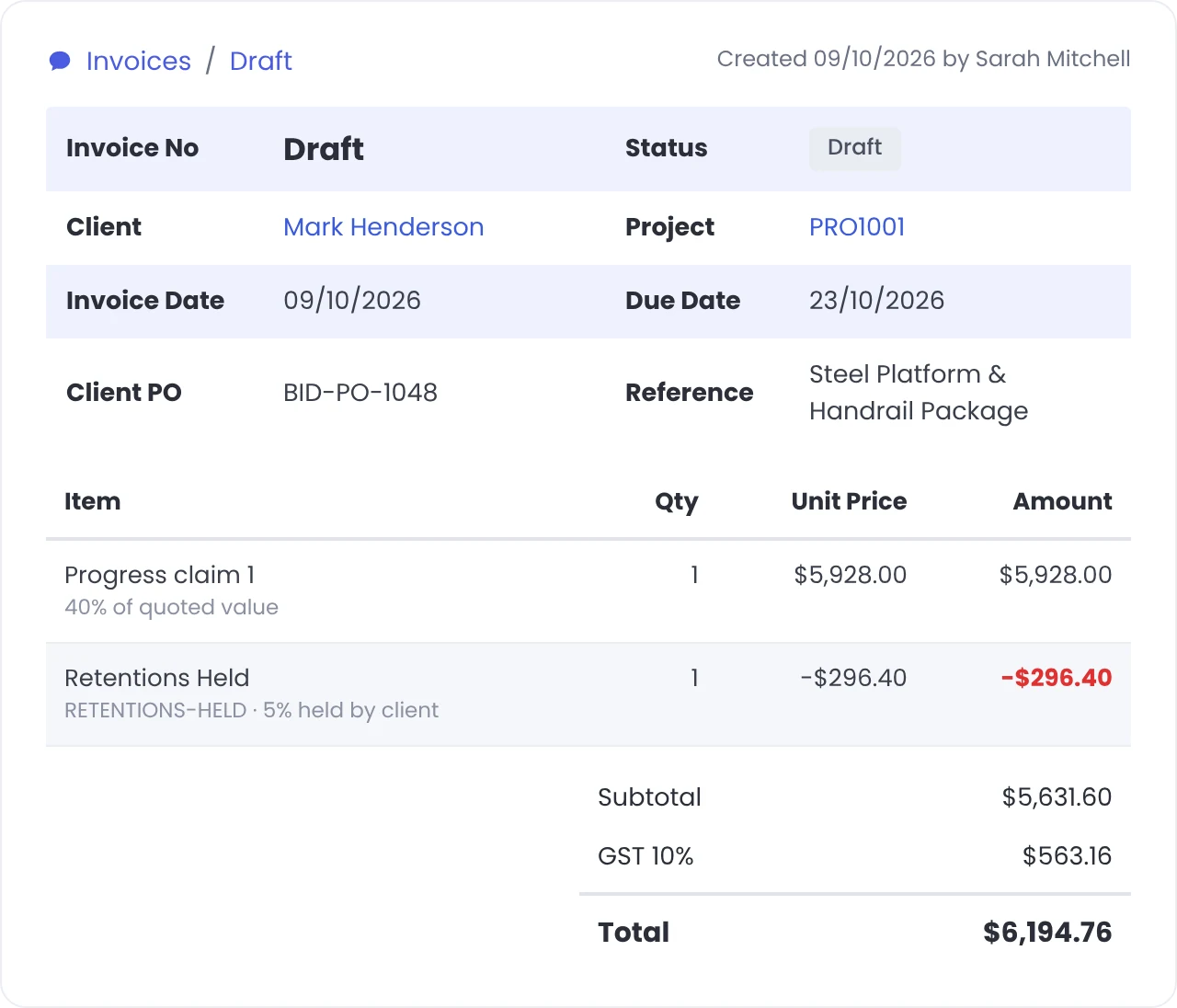
Record retention against the job it belongs to. Your team can refer to the project and its invoice lines when checking a claim or answering a client query.
- Job and invoice context together
- Retention held and claimed shown as separate lines
- Apply retention to the contracts that require it
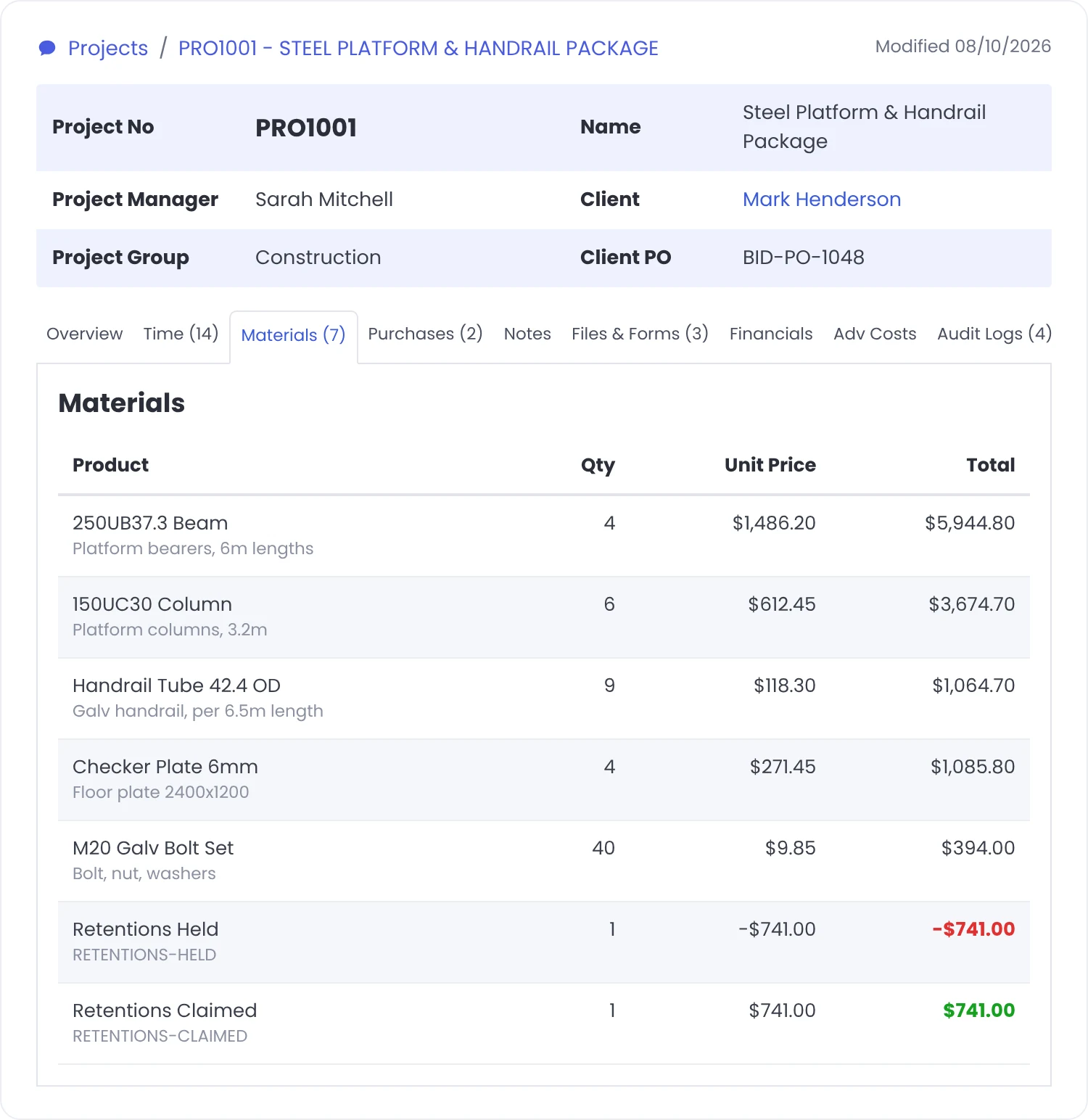
Illustrative invoice workflow. Screenshots show the existing retention line-item setup; account names and tax settings depend on your configuration.
Hold it on every claim
Show the retention deduction on progress invoices
Include the Retentions Held line as a negative amount, so the invoice shows the deduction and the amount requested for payment. Send the invoice through your accounting integration using the configured retention account and tax settings.
- A visible deduction on the invoice
- Retention entries sent with the invoice
- Account and tax mapping configured with your accountant
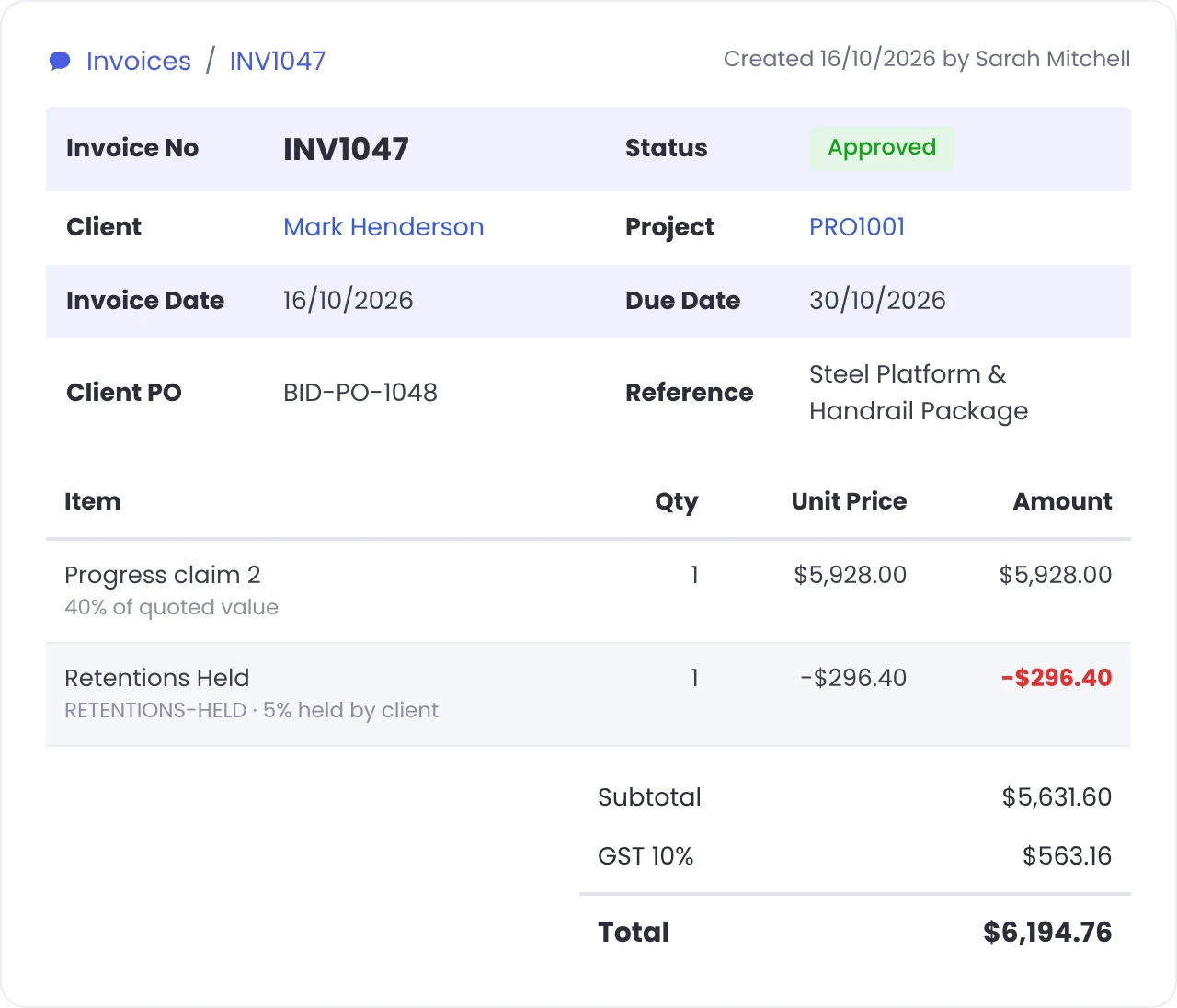
Sent to your accounting system
Illustrative invoice workflow. Screenshots show the existing retention line-item setup; account names and tax settings depend on your configuration.
Claim it back
Raise an invoice for retention ready to claim
Use a Retentions Claimed line to invoice the amount being released. Check it against the contract and previous claims before sending. Raising the invoice starts the collection process; payment still needs to be received and reconciled.
- Invoice the retention being released
- Keep a record against the relevant job
- Follow up the claim through your normal accounts process
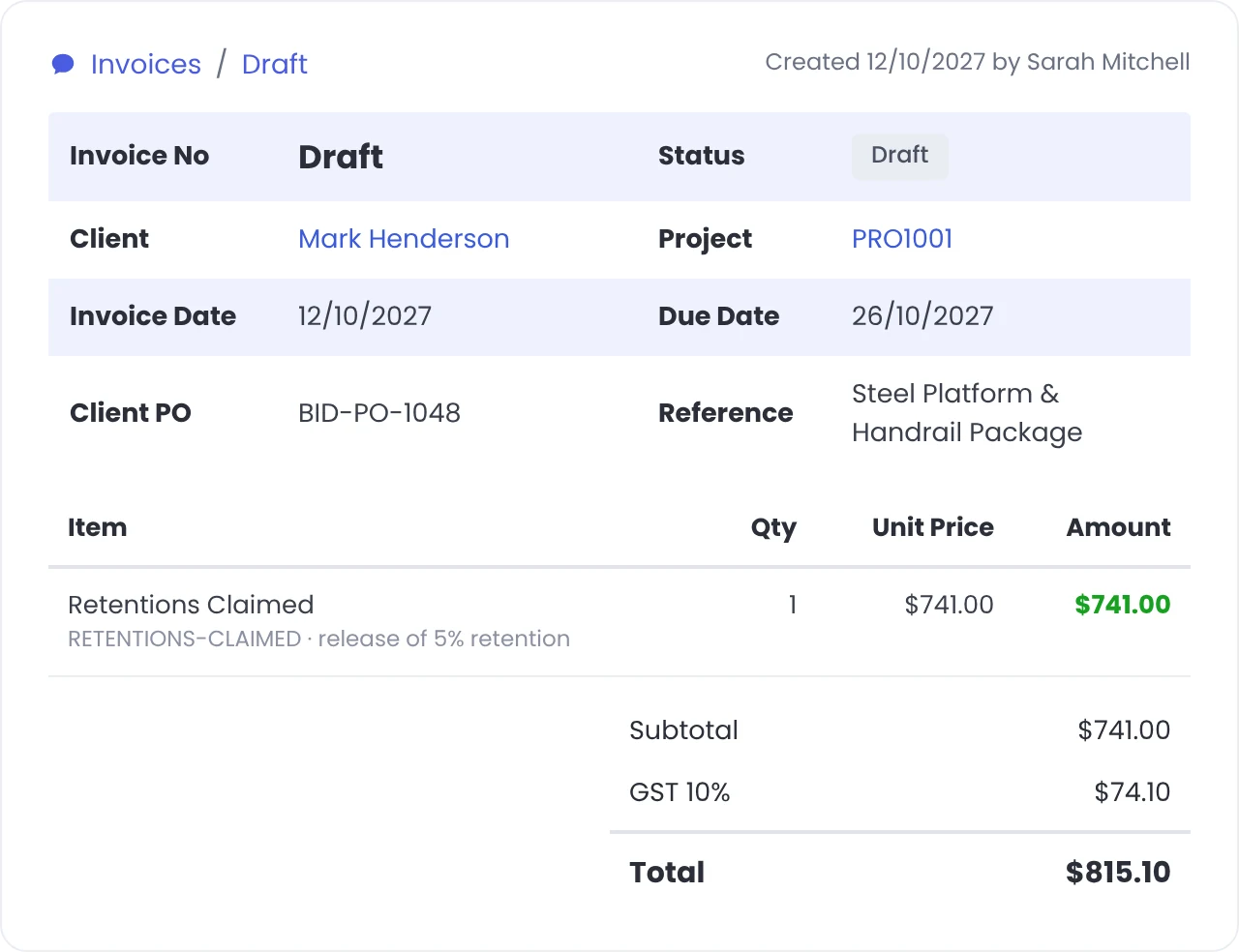
Illustrative invoice workflow. Screenshots show the existing retention line-item setup; account names and tax settings depend on your configuration.
5–10%
of the project value
Retention commonly holds back 5 to 10% of a project’s value. On many jobs, that can be the whole profit margin.
From the WorkGuru blog: Handling Retentions in Construction
By trade
Retentions for contractors and project businesses
For businesses whose contracts include retention, including fabrication, structural steel, fitout and specialist installation work.
Structural SteelFabricationCommercial FitoutSpecialist ContractorsElectrical ContractorsHVACCivil EngineeringModular Builders
Works with
Connected features
Progress Invoicing
Invoice work in stages as the project progresses.
Invoicing
Prepare and send invoices against your jobs.
Job Costing
Review labour, materials and purchasing costs against the job.
Quoting & Estimating
Prepare the scope and pricing before the job starts.
Project Templates
Reuse standard project structures and line items.
Xero
Connect job invoices to your accounting workflow.
FAQs
WorkGuru Retentions: common questions
What is retention on a progress invoice?
Retention is the part of a progress claim the client holds back under the contract. The amount and release conditions depend on the agreement for that job.
How is retention shown on a WorkGuru invoice?
A Retentions Held line shows the deduction as a negative amount. A Retentions Claimed line is used when invoicing retention eligible for release.
Can I adjust a retention amount?
Yes. Review and update the retention value before approving the invoice, so it reflects the agreed amount for that claim.
Does WorkGuru replace our accounting system?
No. WorkGuru manages the job and its invoices, then sends invoice entries through your configured accounting connection. Your accountant can help set the retention account and tax treatment.
Can we use retention on selected jobs?
Yes. Use retention for projects whose contracts require it. Jobs without retention can follow your normal invoicing process.
Does a retention claim mean the money has been paid?
No. A retention claim requests payment. Your team still needs to follow up and reconcile the payment when it arrives.
See how retentions work on your jobs.
Bring a contract or progress claim to your demo. We’ll walk through how retention is recorded, shown on invoices and claimed in WorkGuru.