
Feature
Get the form done while the job is still in front of you.
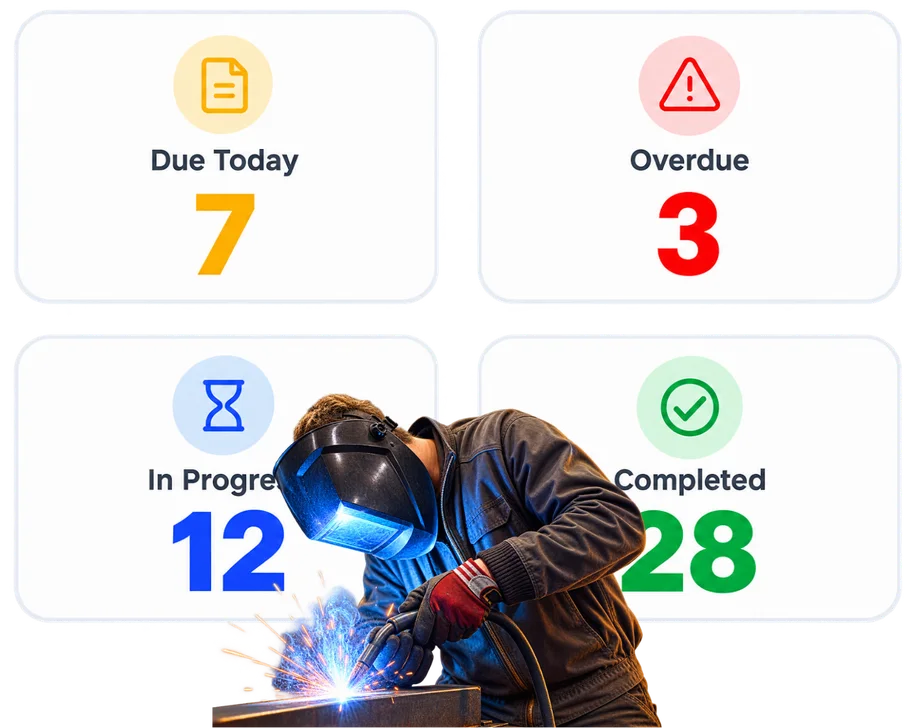
Capture the checks, readings and sign-offs while the job is still in front of you, and have them saved against the work automatically.
Overview
A paper form is easy to hand out. The problem comes later.
Forms are how you capture the paperwork your workflow requires without it becoming paperwork. A completed form saves automatically against the project or production job it belongs to, so the record lives with the work instead of in a folder, a ute, or somebody’s phone.
Setting one up is a two-step process. First you add the form, defining the fields and field types you need to capture. Then you create the form template, which is where you set the layout and formatting of the completed document — the same way WorkGuru’s other document templates work.
That split is deliberate. It means the information you capture and the way the finished document looks are separate decisions, so you can present the same captured data as a tidy client-facing document without changing what the person on the floor fills in.
Forms are completed from the Forms Command Centre, from Projects and from Quotes, so whoever needs to fill one in can do it from wherever they already are.
What’s inside
What you get
01
Reusable forms
02
Job-connected records
03
Field data capture
04
Supporting attachments
05
Completed form history
06
Workflow connection
The reality
Why you need it
The form gets completed but never makes it back to the office.
It’s in the ute, or it’s a photo on a phone, or it’s in a jacket. The check happened and the record didn’t, which for most compliance purposes is the same as it not happening. A form that saves against the job the moment it’s completed removes the return journey entirely.
The same information gets typed twice.
Written on site, typed up in the office, usually days later by someone who wasn’t there. Two chances to introduce an error and one guaranteed cost in admin time, for information that was already captured accurately the first time.
Someone uses an old version of the checklist.
Because it’s the one printed in the folder, or the PDF saved to a desktop two years ago. When the form is defined in one place, the version being completed is the current one without anybody having to police it.
Photos are taken, but nobody can tell which job they belong to later.
Everyone’s camera roll is full of unattributed site photos. They were useful for about a week. Attached to the job they stay useful for years — for the warranty claim, the dispute, or the repeat order.
A handover happens verbally and the record comes afterwards.
Which is fine until the person is on leave, or has left, or simply remembers it differently from the customer. A completed form against the job is the version everyone can look at.
How it works
How it works
01
Choose the form you need
02
Use it around the job or work being done
03
Complete the information while it is fresh
04
Add supporting information where required
05
Keep the completed record with the work
Capabilities
What it does
Capability
Reusable forms
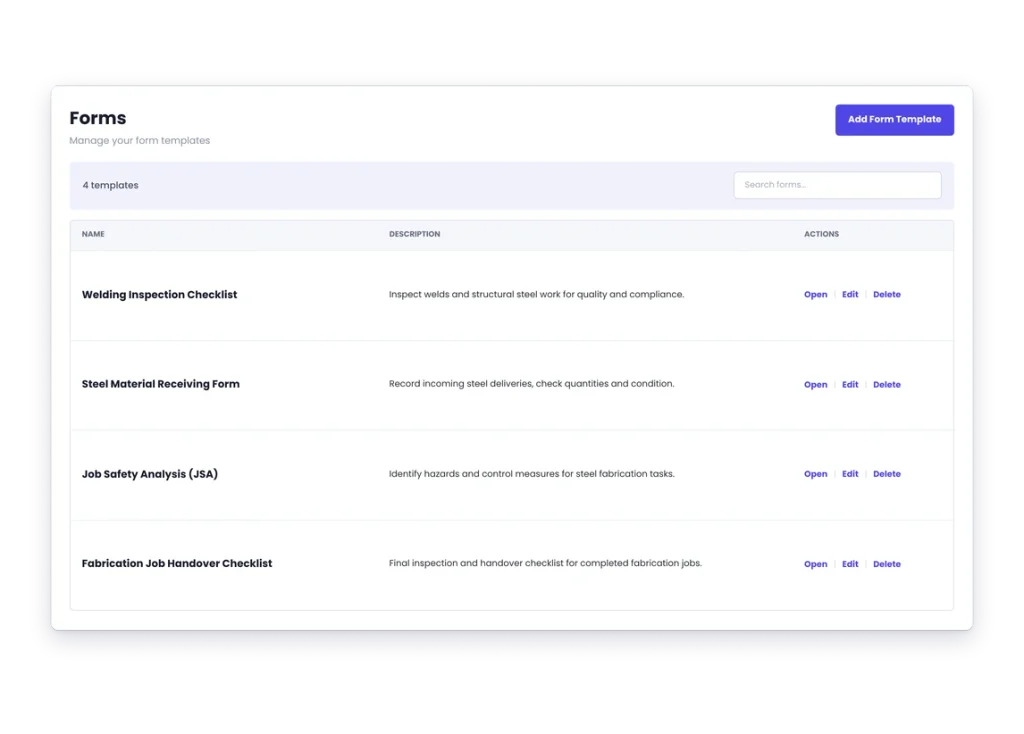
You define each form yourself — the fields and the field types it captures — so you build the ones your work actually needs rather than bending your checks to fit somebody’s standard document. Setting one up is two steps: add the form, then create the form template that sets how the completed document looks.
Capability
Job-connected records
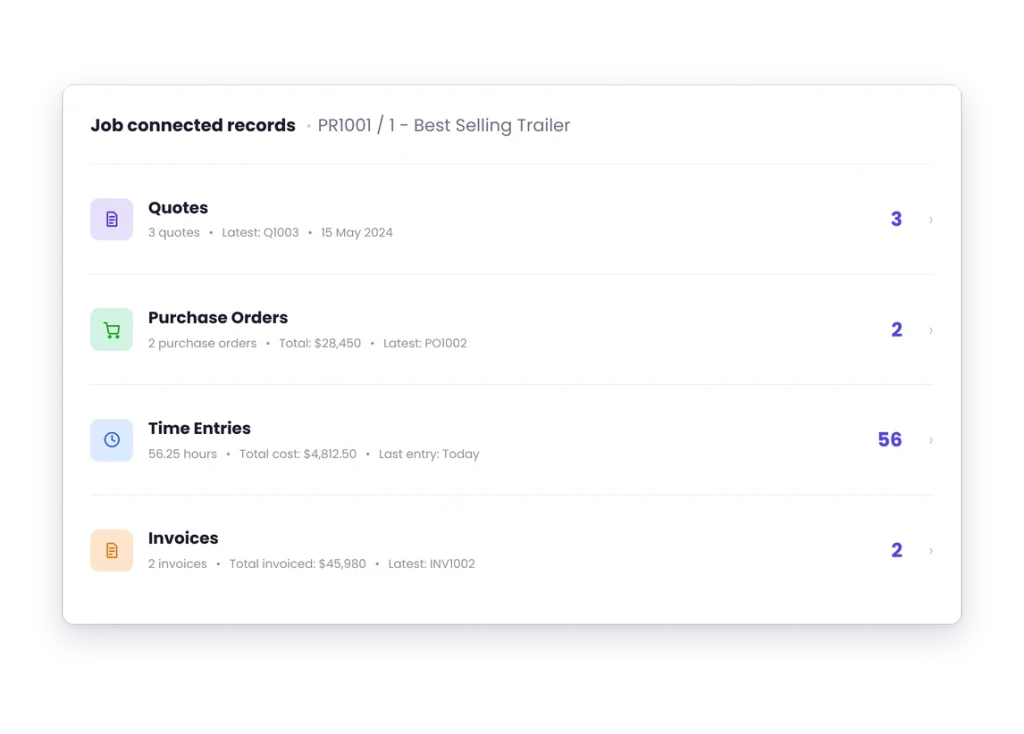
A completed form saves automatically against the project or production job it belongs to. That’s the difference between a record and paperwork: nobody has to scan it, name it or file it, and it’s found by opening the job rather than by remembering who filled it in.
Capability
Field data capture
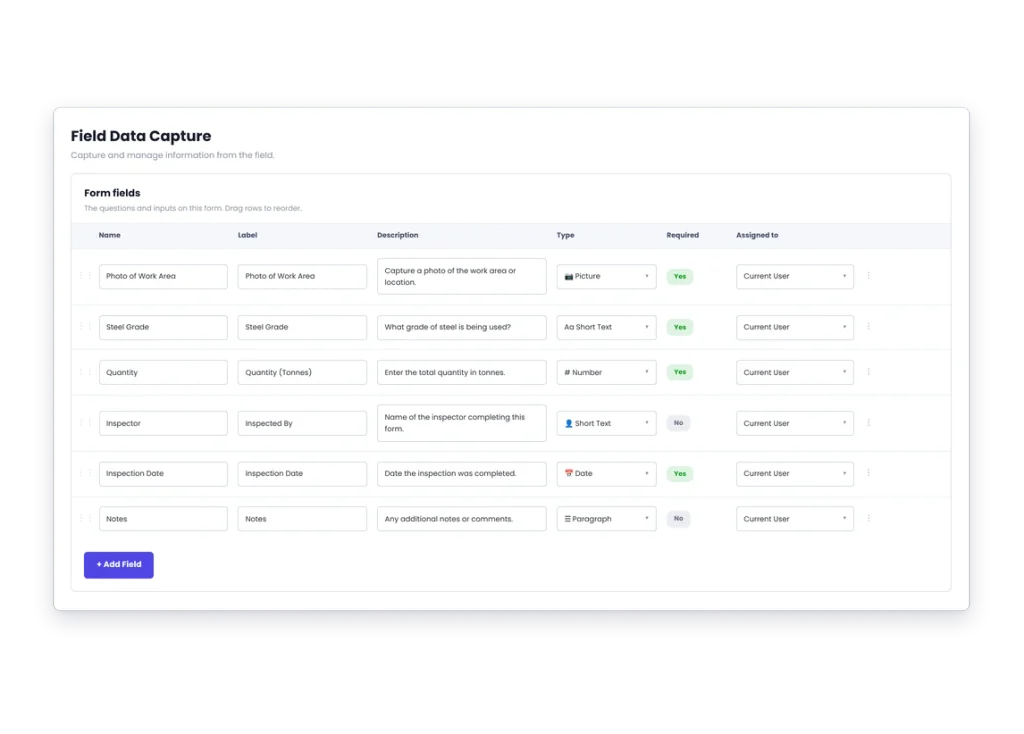
The form captures the specific information the work requires, in the fields you defined, at the moment the person is in front of the job. Information captured at the time is worth having; the same form filled in on Friday from memory mostly isn’t.
Completed form history
Because forms save against the job, a finished project keeps every check, reading and sign-off that was done on it. When someone asks six months later what was inspected and when, the answer is on the job rather than in a filing cabinet or a phone.
Workflow connection
Forms are completed from the Forms Command Centre, from Projects and from Quotes, so people fill them in from wherever they already are. The Command Centre is also where you see what’s been assigned and what’s outstanding, which is what stops chasing being somebody’s memory task.
Day to day
What it looks like on a normal day
A technician completes an inspection before leaving site.
A workshop team records a quality check before the job moves on.
A handover form is completed with the project instead of being recreated later.
What you get out of it
What changes
Get the record done closer to the work.
Stop losing completed paperwork.
Give the office somewhere obvious to look.
Make repeat checks more consistent.
Keep the completed record with the job history.
-
Discovered their contract work wasn’t profitable.
We didn’t wanna pay 100 grand upfront for a program – but then we found WorkGuru.
Nick Mazzella, Administrator, Frontline Trays & Trailers
Fit
Will it work the way we do things?
“Our forms are different for different jobs.” That is normal.”
That’s normal, and it’s why forms are defined per form rather than as one standard document. You build the forms your work actually needs and assign the right one to the right job. Different work requiring different checks isn’t an obstacle — it’s the reason the form builder exists.
“The guys hate forms.” If the form is pointless, they probably should.”
If the form is pointless, they’re right to. The ones that survive are short, asked at the moment the information is in front of the person, and attached to work they’re already doing. Where forms fail it’s usually because they’re filled in later, from memory, in the office — which is also when the answers stop being worth having.
“We already use PDFs.” You can keep using them where that works.”
Keep using them where that works. The difference a form makes is what happens after it’s completed: it’s saved against the project automatically rather than needing to be scanned, named and filed by somebody. If your PDFs already end up somewhere findable, the gain is smaller.
“We need signatures and specific field types.” Exact form-builder, signature and field behaviour needs product review before those claims go live.”
Yes. Assign each form field to a signer, then set the signing order. Signers can be internal staff or external clients, and external signers sign from an emailed link with no login. WorkGuru sends the notifications, tracks progress on the project’s Files & Forms tab, and finalises the form to your document template once the last signature lands.
By trade
Where this gets used
Works with
Connected features
FAQs
Forms questions
Can forms be used against projects in WorkGuru?
Yes. A completed form saves automatically against the relevant project or production job, so it becomes part of that job’s record rather than a separate document someone has to file. Forms can be completed from Projects, from Quotes and from the Forms Command Centre.
Can we create different forms for different types of work?
Yes. You define each form yourself — the fields and the field types it captures — so you can build as many as your work needs. Different jobs requiring different checks is the normal case rather than an exception.
Can forms be completed by field staff?
Yes. Forms are completed against the work, and the Forms Command Centre gives staff a single place to see what’s been assigned to them. The practical test is whether the form is short enough to complete at the time, because a form filled in from memory at the end of the week isn’t capturing much.
Can completed forms be kept as job history?
Yes. Because the completed form is saved against the project or production job, it stays with that job’s record. When someone asks what was checked and when, six months later, the answer is on the job rather than in a filing cabinet.
Can forms include photos or attachments?
Yes. Add a Picture field to your form and staff can upload a PNG or JPG, or shoot straight from the camera roll on the iOS and Android apps. Images are placed and resized automatically on the completed form, which saves as a timestamped PDF against the project or production job in the Files & Forms tab.
Does WorkGuru provide the compliance wording for our forms?
No. WorkGuru gives you the means to capture and store the information; the content of your forms and whether it satisfies your obligations is yours, and usually your industry body’s or your insurer’s. Anyone telling you their software makes you compliant is selling you something.
Show us the form everyone keeps chasing.
We will show you how it could sit closer to the job and the people actually doing the work.